
RockWorks | Borehole Manager | Map | Multi-Log Map
Use this program to create maps in which mini-striplogs, displaying user-selected columns, are plotted adjacent to the borehole location. You can vary the relative scaling of the logs as well as the offset relative to the borehole location symbol.
! The logs for deviated holes will be plotted as "unwound".
See the Multi-Log Plan tool for a map view of logs as projected onto a horizontal plane.
Menu Options
Step-by-Step Instructions
Menu Options
- Clip: Insert a check here to restrict the logs to a specific elevation range. This can be helpful if you have a deep project and only want to highlight log data for a limited interval.
- Top Elevation: Click here to type in the uppermost elevation to be included in the logs. Note that you are entering ELEVATION here, not depth.
- Base Elevation: Type in the lowest elevation to be included in the logs.
- Scaling: The X and Y scaling provide a means for adjusting the relative sizes of the logs:
- To increase the relative width, increase the X-Scalar.
- To decrease the relative width, decrease the X-Scalar
- To increase the relative height, increase the Y-Scalar.
- To decrease the relative height, decrease the Y-Scalar.
- Note: Non-vertical logs will be distorted if the x-scalar does not equal the y-scalar.
- Offset: The offset refers to the distance between the borehole location and the top of the log. The offset represents a percentage of the project size (e.g. 1 = 1% of the distance from the southwest corner of the project area to the northeast corner of the project area).
- Leader Lines: If selected, lines will be plotted from the borehole location to the log. Expand this heading to select the line style.
- Auto-Offset: This feature will automatically re-position the logs so they do not overplot adjacent borehole locations and other logs.

- Note that the automatic offsetting can become obnoxious if the logs are too large (e.g. leader lines crisscrossing the project area). Some experimentation may be necessary in order to gain the optimal output (i.e. the largest logs with the least amount of offset).

- Border: Insert a check in the Border check-box to annotate the map borders with axis titles and/or coordinate labels.
- Expand this item to access the Border Options. (More.)
- 2D Striplog Designer: Click on the 2D Striplog Designer tab to the right, to select the items to display in the individual logs in the map.
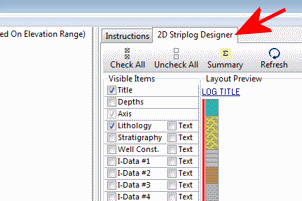
- Visible Items: Use the check-boxes in the Visible Items column to select which log items are to be displayed. See Visible Item Summary for information about the different log items.
- Options: Click on any of the Visible Items names to see the item's settings in the Options pane to the right. See the Visible Item Summary for links to the Options settings.
- Layout Preview: For each item you've activated, you'll see a preview cartoon in the upper pane. Click and drag any item to the left or right to rearrange the log columns. See Using the 2D Log Designer.
Step-by-Step Summary
- Access the Borehole Manager program tab.
- Enter/import your data into the Borehole Manager database.
- Enable boreholes: In the list along the left side of the Borehole Manager window, be sure the boreholes you want to include in the map are checked or enabled.
- Select the Borehole Manager | Map | Multi-Log Map command.
- Enter the requested menu options, described above.
- ! Be sure you click on the 2D Striplog Designer tab to lay out the logs (e.g. stratigraphy, curves, etc.)
- Click on the Process button to create the striplog map.
The program will create a borehole location map including mini-logs of the active boreholes. Any additional diagram settings that you requested will be included. The map will be displayed in a RockPlot2D tab in the Options window.
- You can adjust any of the following items and then click the Process button again to regenerate the map.
- Map settings in the Options pane on the left (change the scaling, adjust the offset, etc.), and/or
- Striplog settings in the 2D Striplog Designer tab.
- Click back to the Borehole Manager to turn boreholes on and off, and then return to the options window to recreate the map.
! Each time you click the Process button, the existing display will be replaced.
! Tip: You can undock the plot window using the  button.
- View / save / manipulate / print / export the map in the RockPlot2D window.
 Back to Map Menu - Summary

RockWare home page