Configuring Borehole Manager Data Pages
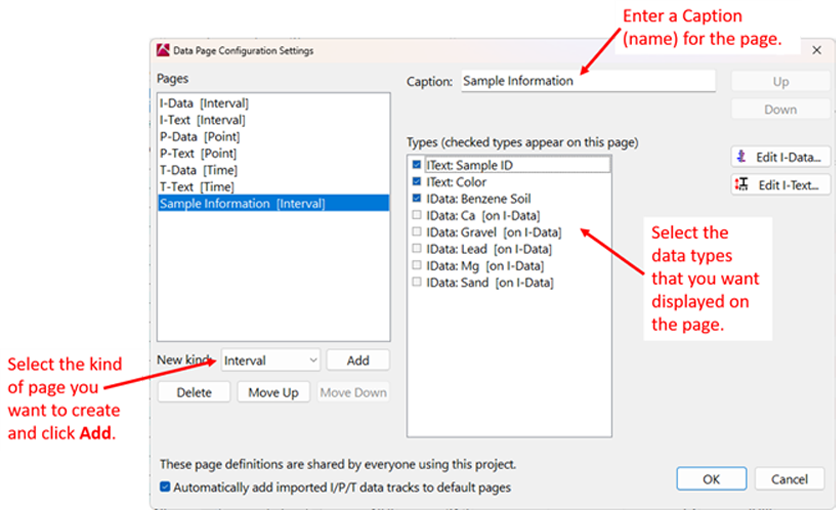
RockWorks allows you to customize the data pages displayed in the Borehole Manager. Instead of using separate, fixed tabs for I-Data, I-Text, P-Data, P-Text, T-Data and T-Text, you can create your own pages and choose which data columns appear on each page.
This makes it possible to organize Borehole Manager data around the way you actually use it. For example, you might create:
Numeric and text data can appear together on the same page when they use the same type of depth or time information.
Page Types
When you create a page, choose one of three types:
You can create more than one page of each type. For example, you could create one Interval page for chemistry results and another Interval page for geotechnical data.
Note: The page type cannot be changed after a page has been created. If you select the wrong type, delete the page and create a new one.
Creating a New Page
The new page will appear as a tab in the Borehole Manager. Once the page is displayed, you can manually drag the columns into the desired order.
Adding Data Columns to a Page
Click the Data Page you want to modify and click the Configure button. Select the page and check the data types that you want to display on it. RockWorks displays each selected data type as a separate column.
Important
Each data type can appear on only one Borehole Manager page at a time.
If you move a data type to another page, it is removed from its previous page. Moving a data type does not delete the data.
Combining Numeric and Text Data
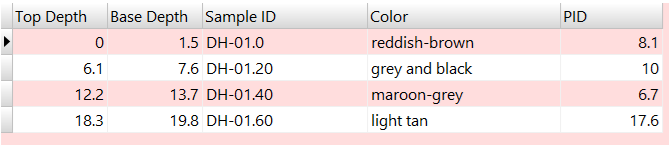
Interval and Point pages can display numeric and text information together.
For example, an Interval page recording Soil Sample information could contain Sample ID, Soil Color and PID readings.
Similarly, a T-Data Table might contain concentration information along with Lab Qualifiers.

RockWorks combines data that have matching depths into the same row. Blank cells simply mean that no value has been entered for that particular data type.
Changing the Page Order
Use the Up and Down controls for the pages to change the order in which the tabs appear in the Borehole Manager.
Hiding a Data Type
Clear the check box for a data type if you do not want it displayed on any Borehole Manager data page.
This does not delete the data type or any of its existing data. It simply removes the column from the Borehole Manager pages.
You can assign the data type to a page again later.
Deleting a Page
Select the page and click Delete Page.
Deleting a page removes the page configuration but does not delete any borehole data.
Data types that were assigned to the deleted page will no longer be displayed until they are assigned to another page.
Existing RockWorks Projects
When you first open an existing project with this version of RockWorks, the Borehole Manager will initially use pages corresponding to the previous layout:
You can then customize this arrangement by creating, renaming, combining, reordering, hiding, or deleting pages and by moving data types between pages.
Your existing borehole data are not changed when you reorganize the pages.
Shared Projects
Borehole Manager page configurations are saved as part of the RockWorks project.
If several people use the same project database, they will therefore share the same Borehole Manager page configuration. Changes to the page layout made by one user will affect the layout seen by other users.
Reorganizing the pages does not change the underlying borehole data.
 Back to Entering Borehole Data - Overview
