 Estimated time: 5 minutes.
In this lesson, you will create a 3D model of the project's stratigraphic surfaces.
Unlike a 3D lithology model (see that lesson) which uses a solid model to represent material types, the stratigraphic model represents multiple surface models, stacked on top of each other. The surfaces are interpolated from the stratigraphy contacts defined in the boreholes, using a process referred to as "gridding." (More.)
! You must be using RockWorks in Trial mode, or have a Standard or Advanced license to run this modeling program.
- Back at the Borehole Manager, with the Samples boreholes still displayed, click on the Stratigraphy menu and select the Model option.
- Stratigraphy Types to be Included: Expand this heading and choose All Stratigraphic Units. (The other option offers a means of limiting the modeling to activated unts in the Types Table - handy for deep projects.)
 Interpolate Surfaces: Be sure this is checked. This tells the program to interpolate surfaces for the units rather than use existing surfaces (e.g. from a previous run of this program).
- Options: Click on this button (to the right) to access a window with the gridding options.
- Algorithms: These options determine the method that will be used to interpolate the surface models.
 Triangulation: Choose this option for the modeling method.
- Interpolate Edge Points: Be sure this is checked.
! Note that if you choose a different gridding method, the options that are visible will change.
- Grid Dimensions:
- Based on Output Dimensions: This should be the default setting. The surfaces will be dimensioned as per the settings under the Output Dimensions. If you’d like to double-check these settings, you can click the Adjust/Examine Output Dimensions button to view the window you saw back in the Set Output Dimensions lesson.
! In your own work, we recommend you choose this option so that the grid and solid model dimensions are consistent. However, the program does offer the option to vary the model dimensions, under the Variable Dimensions heading.
 Confirm Dimensions: Uncheck this (though in your own work, this is a handy way to double-check the model extents and node spacing).
- Additional Options: Set these options.
- Decluster: On
- Logarithmic: Off
- High Fidelity: Off
- Polyenhance: Off
- Smooth: On (Default size and Iterations = 1)
- Densify: Off
- Max. Distance: Off
- Z = Color: Off
- Faulted: Off
- Click the OK button to accept these gridding settings.
- Other modeling options - expand the Interpolate Surfaces heading to access these settings:
- Onlap: On. This assures that lower formations have "priority" and upper layers cannot fall below or interfere with lower layers.
- Constrain Model Based on Ground Surface: Off (This allows you to filter the uppermost unit using a ground surface model.)
- Polygon Filter: Off
- Baseplate: Uncheck this.
- Compute Volumetrics: On.
- Save Numeric Model: On. This tells the program to build a solid model file behind the scenes, representing the stacked stratigraphic surfaces. This solid won't be used at this time, but we'll use it a bit later for volume computation. Expand the Save Model heading.
- Model Name: Click to the right and type in: stratigraphy and click the Save button. The ".RwMod" file name extension will be added automatically.
More on stratigraphic models.
- Diagram: Click on the Options button (to the right) to access the stratigraphy diagram settings.
- Plot 3D Faults: Uncheck this. (It's used to insert space between the units when displayed in 3D.)
- Explode: Uncheck this. (It's used to insert space between the units when displayed in 3D.)
- Hide Thin Zones: Uncheck this.
- Plot Logs: Yes. Be sure that none of the clipping options are turned on. The defaults for the appearance of the logs should still be remembered from the first lesson. Once you close this window, feel free to click on the 3D Striplog Designer tab to the right to double-check the 3D log setup.
- Reference Cage: Unchecked.
- Include Stratigraphy Legend: Check this.
- Click OK to close this window.
- Click the Process button at the bottom of the Stratigraphic Model window.
- The program will create a grid model of each stratigraphic surface and base. The grid models will be stacked and displayed with side panels in a new RockPlot3D tab.
(Since you activated the Save Model option, above, the program will also initialize a blank solid model and "insert" the grid surfaces into the solid model. This means that the model nodes between each formation’s base and surface will be coded with the numeric "G" value listed in the Stratigraphy Type Table. The resulting stratigraphic model will be stored on disk under the name "stratigraphy.RwMod." This model will be set aside for later use.)
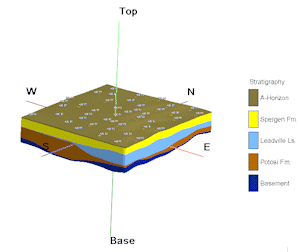
- Some things to note:
- As before, the 3D image is displayed in the pane to the right, and the image components and the standard reference items are listed in the pane to the left. (You can reverse the position of the image and data panes using the << and >> buttons above the "linked file list.")
- RockWorks imbeds the individual grid files (representing the surfaces) within the xml file so won't be shown as linked files
- The program created a copy of your stratigraphy types, and stored these in the view in the Tables section of the data listing. The stratigraphy legend is linked to this information.
- Adjust the vertical exaggeration: Click on the Dimensions button
 and set the Vertical Exaggeration to 1.5. Click Apply, and then Close.
- Expand the Stratigraphy Model group
 in the data tree. Note the formation names are listed there.
- Expand the upper formation, A-Horizon, group. Note the total volume listed for the formation. In addition, total mass will be listed, which is the result of the volume multiplied by the "Density Factor" listed for that formation in the Stratigraphy Types Table. It's important to note that in your own work, you should be sure that the Density Factor you enter is correct before taking stock in the displayed mass computations.
- Remove the check-mark from the next formation, Spergen Fm, and see how that entire formation will be removed from the image view. Remove the check-mark from the next formation, Leadville Fm, as well, and it will disappear.
- Expand the next formation, Potosi Fm, in the data tree, and expand its Top group. Double-click on the formation top’s Elevation Grid.
- Click in the Color Scheme drop-down list, and choose the Continuous option. Click Apply to see how the upper surface of the formation is now displayed in color.
- Click Close to close the Grid Options window.
- Save this image by choosing File | Save As. Enter the name: strat model and click the Save button. The file "strat model.Rw3D" will be stored in your project folder.
- Other things to try:
- Double-click on the Stratigraphy Model group icon - the parent of all of the formation groups - and set the Opacity setting for the whole image to 70 and click Apply.
- Change the font size or style in the stratigraphy legend by expanding the Legends heading, double-clicking on the Stratigraphy legend item, clicking on the Font button, and selecting a different font size or style.
 Stratigraphy Models, Gridding Reference
 Back to Stratigraphy menu | Next (interpolated cross section)

RockWare home page