 Estimated time: 4 minutes.
In this lesson, you will get a quick view of one P-Data component (Gamma) as entered for the project’s boreholes, by generating 3D logs.
- To create the 3D logs, click on the Striplogs menu, and then click on 3-Dimensional | Multiple Logs.
This window has several sections:
The left side is where general diagram settings are established.
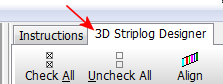
The 3D Striplog Designer tab is where you establish the log-specific settings.
- Establish the general diagram settings in the left pane.
- Group Title: This can be left at: Logs
 Clip: Uncheck this.
- Reference Cage: Uncheck.
- Include Lithology Legend: Uncheck.
- Include Stratigraphy Legend: Uncheck.
- Include Well Construction Legend: Uncheck.
- Click on the 3D Striplog Designer tab.
- The left pane is where you choose what type of data is to be displayed in the logs (the Visible Items).
- The upper-right pane is where you see a plan-view Preview of the active log items. You can drag the items to adjust their relative placement.
- The lower-right pane displays specific Options for the Visible Item that you click on.
Choose the items you want to see in the logs by inserting a check-mark in the following items in the Visible Items section of the window:
 Title: The drill hole name will plot above the logs.
- Axis: The logs' axes will be shown with a solid line.
- P-Data #1: The logs will contain a column illustrating point-data values. You can include up to 4 different P-Data "tracks"; we'll display only one in this lesson.
When this column is selected, you'll see a green circle displayed in the plan-view Preview pane.

- Track: At the top of the Options pane, click on the Track heading and choose Gamma as the data to be represented in the logs.
- Column Title: This should be blank. If text is displayed for this prompt, click on this heading and delete the text.
- Offset Distance: Adjust the placement of the column relative to the axis of the log by dragging the circle in the Preview pane. Be sure the P-Data circle is on the center of the log axis.
! You can simply type 0.0 into the Offset Distance prompt, if you prefer.
- Column Radius: Adjust the size of the column by dragging on one of the corner handles. Note the Column Radius setting in the lower-right Options pane. As you resize the circle, the Radius setting will be updated. Drag the P-Data #1 circle until the Column Radius is about 1.0.
! You can simply type 1.0 into the Column Radius prompt, if you prefer.
- Scaling: Expand this heading and set the scaling to Automatic.
- Plot Line: Uncheck this.
- Discs: Check this option to represent the data as 3D discs. Expand this heading and set the Color Options to Cold ->Hot.
- None of the other Visible Items should be checked.
- Click Process at the bottom of the Multiple Log 3D Plotting Options window to proceed.
The program will create a log for each enabled borehole, including well name at the top, and color-coded Gamma-value discs displayed down the log. They will be displayed in a new, RockPlot3D tab, to the right.
The image is displayed in the pane to the right, and the image components as well as the standard reference items are listed in the pane just to the left of the image. The expandable/collapsible list on the left is called the "data tree."
- Adjust the reference items:
- World Outline: Check this option, if necessary, and expand this heading.
- Set the following items to be on/off:
- Top: Uncheck this if necessary so that you can look down onto the log display with no interference from panels.
- Base: Check this.
- West: Check this
- North: Check this
- East: Uncheck this
- South: Uncheck this
- Double-click on the North option.
- Fill / Enabled: Check this, and select light gray for the color.
- Drag the Transparency slider bar to the middle.
- Set the Rows and Columns to 5 and the line color to red.
- Click OK to close the window.
- You can continue to modify the World Outline panels as you wish. For example, you could un-check the South and East panels, and set the North and Bottom panels to the same fill and row/column settings as the North panel, above.
- Be sure the Axes and Labels are both turned on.
- Zoom into the scene by selecting the "200%" option from the zoom drop-down at the top of the plot window.
- Re-adjust the rotation if you wish, even when zoomed in. Use the Pan tool
 to move the current view back and forth, up and down. To zoom back out, just click once on the Zoom Out button
- Turn on/off logs: Expand the Logs group in the data tree, to see the individual boring names. You can turn entire logs on and off simply by checking/clearing their respective check-boxes. Try this for a few borings.
- Turn on/off log items: In addition, if you expand an individual borehole in the data list, you’ll see its title, axis, and P-Data#1 item. These, also, can be turned on and off individually for each well.
- Save this 3D log data: Select the File | Save As command. In the displayed window, type in this name: p-data logs and click the Save button. RockPlot3D will save this information on disk under that name, with an ".Rw3D" file name extension. In later lessons, you can append these logs to other 3D diagrams.
- Close the RockPlot3D window by clicking in the Windows Close button
 .
.
 3D Logs
 Back to P-Data menu | Next (2D log section)

RockWare home page