RockWorks | Borehole Manager | Production | Graph Map
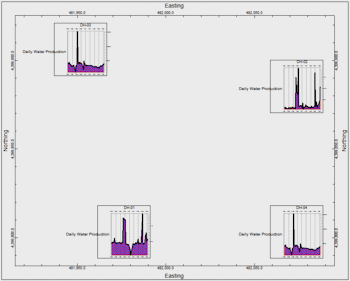
This program is used to read date-based oil and gas production data from the borehole database and create a map in which 2D production mini-graphs for all enabled wells are displayed. Many graph types are offered (oil production, gas production, etc.). The mini-graphs are plotted centered below the well's location.
Tip: Combine the production graphmap with a borehole location map to include the well symbols and other labels.
Feature Level: RockWorks Advanced
Menu Options
Step-by-Step Summary
Menu Options
- Graph Type: Click on the Options button to choose the type of graph you wish to generate for the map.
- Type of graph: This drop-down list includes a long list of diagram types, for display of single measurements or multiple measurements. (More.)
- Adjust Parameters: Use this button to customize the type of graphs to be displayed as well as the features of each graph. (More.)
- Normalize graph(s) to same range as other wells: Check this box if the graphs for all of the wells are to be plotted at the same scale, to accomodate the highest value in the population.
- Date Labeling Frequency: Choose the labeling frequency for the lower horizontal (time) axis for each graph.
- Plot Master Title: Check this box to include a title at the top of each mini-graph.
- Use Borehole Name: Choose this option to plot each well's name in its graph title.
- Other: Choose this option to plot a different title. Enter the text for the title in the prompt. This will be used on all graphs
- Font size: This is defined as a percent of the extent of the diagram. The greater the value, the larger the text. (Default = 3%)
- Diagram Dimensions: Use these settings to establish the size of each mini-graph on the map.
- Width: Here you can define the width of each graph as a percent of the map size. (Default = 5%)
- Height: This defines the height of each graph as a percent of the map size. (Default = 5%)
- Y-Offset: This defines how much below the well's location point the graph will plot. It is defined as a percent of the map size. (Default = 1%)
- Background
- Opacity: Use this to adjust the opacity of the production charts. At 100% they will plot using the solid color (defined below). At a lesser opacity any background graphics, such as contours if later appended, will show through.
- Color: Choose the background color for the graphs.
- Date Filter: Check this box to restrict the graph to a specific date range. Click the Options button to define the range.
- Starting Date: Type in the starting date for the graph using a mm/dd/yyyy or dd/mm/yyyy format as is consistent with how your data is displayed in the database (per Windows date/number format).
- Ending Date: Type in the ending date for the graph using the same date format.
- Stratigraphy Filter: Check this box to plot the data listed for a specific formation. Expand this heading to select the formation name. (If left unchecked, all measurements will be included, given the date filter, above).
- Filtering Formation: Select the name of the formation whose data is to be plotted. The formations will be listed from the Stratigraphy Types Table.
- Border: Check this box to include a border with coordinate labels around the edge of the map. Click the Options button to view/adjust the border settings. (More.)
- Miscellaneous:
- BOE Conversion Factor: Click to the right to type in the Barrel of Oil Equivalent conversion factor. Gas production values will be mulitplied by this value and added to the Oil production numbers to generate a total production value.
Step-by-Step Summary
- Access the Borehole Manager program tab.
- Enter/import your well production data into the database.
- Select the Production | Graph Map menu option.
- Establish the diagram settings, discussed above.
- Click the Process button to continue.
The program will generate the requested graph(s) for the enabled boreholes. It will display a small graph on a map view at the well locations. The completed map will be displayed in a RockPlot2D tab in the Options window.
- You can adjust any of the diagram or map options in the pane to the left and then click the Process button again to regenerate the map.
! Each time you click the Process button, the existing display will be replaced.
- View / save / manipulate / print / export the map in the RockPlot2D window.
 Back to Production Menu Summary

RockWare home page