RockWorks | Utilities | File | Import | WCS (Tobin Well Locations)
This program is used to import data from a Tobin Well Coordinate Service (WCS) file into the Utilities data window. WCS files contain well location and other miscellaneous well information; you can select which fields to import.
Menu Options
Step-by-Step Summary
Menu Options
- Input File: Click here to browse for the Tobin WCS file to be imported.
- Items to Import: Expand this heading to see an alphabetical listing of all of the well fields that can be imported. Insert a check in those to be imported; remove the check-mark from those to be skipped. For each, you can expand the heading to specify the Utilities datasheet column number into which the data will be listed. The default order is:
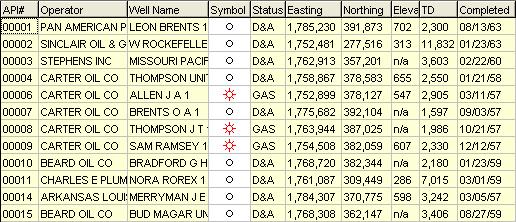
- API Number, Operator, Well Name, Symbol, Status, Easting, Northing, Elevation, Total Depth, Completion Date, Longitude, Latitude, State, County, Field, Lease, Well Number, Data Source, Generation, Location Type, Metadata, Last Update.
Step-by-Step Summary
- Access the RockWorks Utilities program tab.
- Open the project folder (if necessary) in which the imported data is to be stored.
- Create a new, blank datasheet using the File | New | Blank menu option.
- Choose the File | Import | WCS menu option.
- Enter the requested menu settings, described above.
- Click the Process button to continue.
- The program will read the contents of the WCS file and list the wells in rows in the data window. The fields you requested will be listed in the data columns. Well symbol is selected based on a list of status definitions in a "Well Status Table."
- Update Project Dimensions: You will be prompted whether you want to establish or update the Project Dimensions based on the imported data. Be sure to do so at some point before generating maps.
- Once the well information has been imported, you can use the Map | EZ Map or Grid-Based Map tools to create a map of the well locations and/or contour map of the surface elevations.
See also
 Back to Importing Data

RockWare home page