Model-based Projected Sections: These are available within the RockWorks Borehole Manager's Lithology, Stratigraphy, I-Data, T-Data, P-Data, Fracture, Aquifers and Colors menus. They are used to display a series of connected slices in 2D from the inside of a solid, stratigraphy, or aquifer model to illustrate lithology distribution, stratigraphic or water level elevations, geochemical/geophysical values, colors, and fracture proximities. Striplogs can be included in any of these diagrams, projected onto the section line.
Log-only Sections: These are available using the Striplogs | 2-Dimensional | Projected Section program which displays multiple boreholes as if projected onto a vertical line of section.
Projected Section tools are also available within the RockWorks | Utilities | Solid menu, to slice an existing solid model containing any type of data.
Selecting the Projected Section Location
Importing/Exporting the Projected Section Location
Selecting the Projected Section Location
- Select the Projected Section tool from the Lithology, Stratigraphy, I-Data, T-Data, P-Data, Fractures, Aquifers, Colors, Grid, or Solid menu. Or select 2-Dimensional | Projected Section from the Striplogs menu.
- Establish the diagram-specific settings using the options which are listed in the left side of the program dialog.
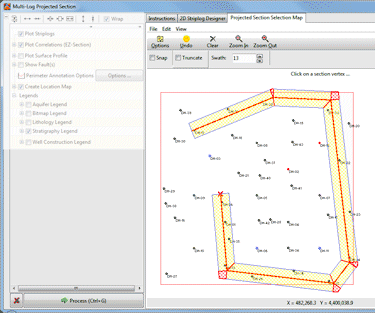
- Click on the Projected Section Selection Map tab that's displayed to the right of the options.

It will display the well locations as a plan-view map, with boring name and symbol color tied to each well. Any previous panels drawn for this project will also be displayed on the map. (Note: if you are using the Solid | Projected Section tool, only the project boundaries will be displayed.)

- To accept the current selection, simply click the Process button at the bottom of the window to proceed with diagram generation.
- To redraw the projected section panels or to add onto the existing section panels, follow these steps:
- Reset the display (if necessary): Rockworks will remember any panel selections for this project from previous sessions. If you wish to discard any existing selections and start panel-picking from scratch, click the Clear button at the top of the screen (also present in the Edit menu).
! DON'T do this if you want to append to an existing section.
- Pick the first panel endpoint / Append another panel: Click on the location to be represented along the left edge of the first panel of the projected section. If you are appending to an existing trace, pick the location for the next panel to be added to the existing list. The program will draw a line from the last endpoint to this one. The X and Y coordinates for this point will be posted to the vertex listing to the right.
- Pick the next endpoint, and the next and the next. Each selected panel point will be connected to the previous selection with a line, and its coordinates posted to the list.
- Swath: For profiles containing logs, you can adjust the Swath, shown above by the cross-hatched area. This represents the distance to either side of the actual projected section line that boreholes will be "grabbed" for projection onto the line. You can change the clipping distance by clicking the up- or down-arrows at the top of the window, or by typing an actual value into the Swath prompt.
- Snap: To snap the section panel endpoints to actual well locations, insert a check in the Snap check-box. As you click the panel endpoints, they will be repositioned to the nearest boreholes.
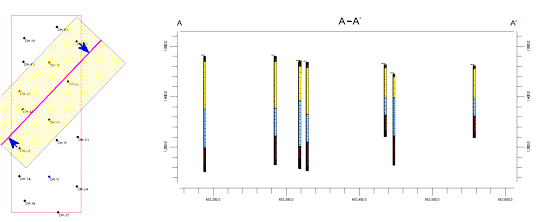
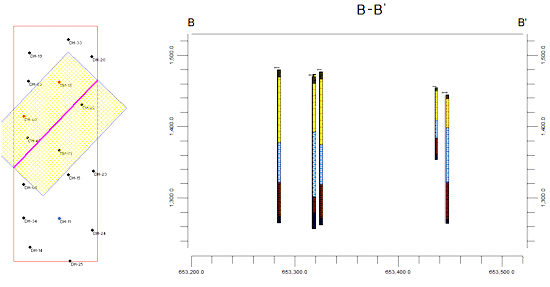
- Truncate: Use this check-box to truncate the projected section at the boundary of the project. Compare the following; in Section A, truncation is off, and the logs on either end are projected onto the line of section even though it extends beyond the project boundary. In Section B, truncation is turned on, and the section line stops at the defined project dimensions.
- To "zoom in" to a portion of the display:
- Select the View | Zoom In command or click on the
 button at the bottom of the window.
- Draw a rectangular area to be enlarged: Position the pointer on the map display where one corner of the enlarged area should be. Click and hold the left mouse button. Drag the mouse to the opposite corner of the area to be enlarged and release the mouse button. For your reference the enlargement rectangle will be displayed temporarily. When you release the mouse button, the program will magnify the selected map area.
- To "zoom out" of the display:
- Select the View | Zoom Out command or click on the
 button at the bottom of the window. The program will redraw the window to the original display, including all enabled boreholes.
Importing/Exporting the Projected Section Location
- To import a list of section panel endpoints, follow these steps:
- Click on the File button at the top of the window and select Import.
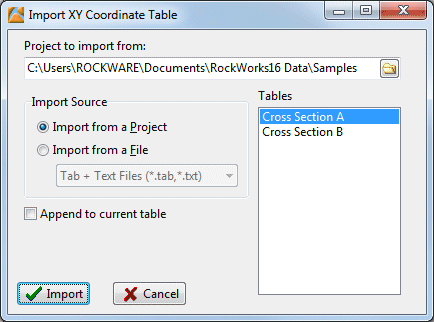
- Project to import from: Click on the open-button to browse for the project folder which contains the XY Coordinate table or text file whose coordinates are to be imported.
- Choose whether you are importing from an XY Coordinate table in the project database, or from a text file.
- Import from a Project: Select the name of the XY Coordinate table you wish to use, from the Tables list to the right.
- Import from a File: Select the name of the TXT or TAB file that contains the listing of the panel vertices. This file must comply to this format:
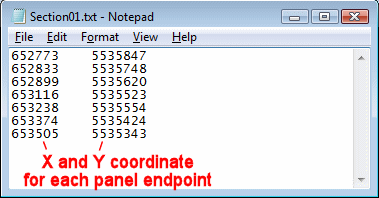
Columns must be separated by Tab characters. The file must be text in format, such as created by Windows notepad.
Once imported, you'll see the coordinates listed in the Vertices table to the right of the map. You'll also see the represented panels in the display map.
- To export the current section panel endpoints (for future use, for scripting, etc.):
- Click on the File button and select Export:
- Database File: choose this option to save the section trace coordinates to an XY Coordinates table in the project database. This can be used if you build scripts for creating cross sections in batch.
- Tab-Delimited ASCII File: Choose this option to save this section trace coordinates to an ASCII tab-delimited file. An example is shown above.

RockWare home page