
RockWorks | Borehole Manager | Colors | Model
Use this program to:
- Create a new 3-dimensional solid or block model representing your downhole color intervals (an .RwMod file) - OR - read an existing .RwMod file you've already created.
- Display the color model as a 3D voxel diagram in RockPlot3D.
Feature Level: RockWorks Standard and higher
Menu Options
Step-by-Step Summary
Tips
Menu Options
- Color Modeling Options: First, tell the program whether you wish to use an existing color solid model (from a previous use of this tool or another Colors menu tool) or you wish to create a new color solid model, by clicking in the appropriate radio button.
! NOTE This is not trivial. Creating the model can take some time, depending on the resolution of the model and the detail of your data. If you already created a pleasing model for display as a profile, for example, you can use the same model, which was stored on disk as an .RwMod file, for the 3D diagram.
- Create New Model: If want the program to interpolate a new model for the diagram, click in this radio button, and expand this item to establish the modeling settings.
- Create Filter / Sampling Report: If you select any filter/resampling options, this option will create a summary report of the results. (More.)
! Note that these tools filter the data that is passed to the modeling procedures. This is distinct from the filters that are applied after the model is completed (see Other Modeling Options below).
- Color Range Filter: Insert a check here to filter the input data based on color. (More.)
- Spatial (XYZ) Filtering: Insert a check in this box - on the far right side of the current program window - to activate a data filter based on spatial coordinates. Expand this heading to establish the filter settings.
- Solid Model Name: Click to the right to enter a name for the color model. The program will append automatically the file name extension .RwMod.
- Solid Modeling Options: Click on this button to establish important modeling settings:
- Algorithm (Modeling Method): This determines the modeling method to use, for creating a solid model from your irregularly-spaced drill hole color data. (More.)
- Model Dimensions: This determines the model density. (More.) Unless there's a specific reason to do otherwise, you should probably leave the solid model dimensions set to the current project dimensions.
- Other Modeling Options: These include tilting, warping, filtering above-ground, defining this as a color model type, and much more.
- Use Existing Model: If you wish to use an already-existing color model, click in this radio button. Expand this heading.
- Model Name: Click to the right to browse for the name of the existing color model (.RwMod file) to be used for this solid model.
- Create Diagram: Insert a check here to create the voxel diagram after the block model is created. Expand this heading to set up the diagram.
Note that, unlike some other 3D diagrams (which represent I-Data or P-Data models, for example), the voxel style is hard-wired to Voxels. Isosurface diagrams are not an option for color models.
-
- Plot Logs: Check this box to append striplogs to your 3D diagram.
-
- Clip Logs: Check this sub-item if you want to restrict the logs to a particular elevation range. This should match the elevation range of the color model you are creating at this time (or the existing model, if specified).
- 3D Striplog Designer: Click on the 3D Striplog Designer tab to the right, to select the items to display in the individual logs to plot with the model.
-
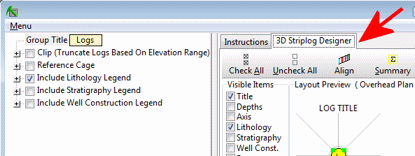
- Visible Items: Use the check-boxes in the Visible Items column to select which log items are to be displayed. See Visible Item Summary for information.
- Options: Click on any of the Visible Items names to see the item's settings in the Options pane to the right. See Visible Item Summary for links to the Options settings.
- Layout Preview: For each item you've activated, you'll see a preview cartoon in the upper pane, showing an overhead view of the log columns. Click and drag any item to rearrange the log columns; click and drag the circle handles to resize a column. See Using the 3D Log Designer.
- Reference Cage: Insert a check here to include vertical elevation axes and X and Y coordinate axes in the 3D diagram. Expand this item to set up the cage items. (More.)
- Diagram Title: Click to the right to enter a name for the 3D "group" or layer that will be displayed in the RockPlot3D window.
Step-by-Step Summary
Follow these steps to create a 3D solid model of interpolated color intervals, and/or to create a 3D block diagram illustrating this model or an existing model:
- Access the Borehole Manager program tab.
- Enter/import your data into the Borehole Manager. This tool specifically reads location, orientation (if any), and color data.
- Select the Colors | Model command.
- Enter the requested menu items, described above
- If you are including logs with the diagram, be sure to click on the 3D Striplog Designer tab to establish how you want the logs to look.
- Click Process to proceed with model and diagram generation.
If you've selected Use Existing Model, the program will load the information from the existing color model (.RwMod file), and will proceed to diagram generation.
If you've selected Create New Model, the program will scan the project database and extract the XYZ points for all of the downhole color measurements. (For color data, the elevations will represent interval midpoints.) It will apply any source data filters you have requested.
- If you have requested model size confirmation, the program will display a window at this time. Adjust these dimensions as necessary and click OK to continue. (More.)
The program will use the selected algorithm to create a solid model of the downhole color data, storing the actual Windows color number as the "G" value in the model. The completed model will be stored on disk under the indicated file name.
If you requested a diagram, the model will be displayed in a RockPlot3D tab in the Options window, using the actual Windows colors stored in the model. If you activated the Plot Logs feature, the program will also append the 3D logs to the view.
- You can adjust any of the following items and then click the Process button again to regenerate the display.
- Color model settings in the Options pane on the left*, and/or
- Diagram settings in the Options pane on the left, and/or
- Striplog settings in the 3D Striplog Designer tab.
! Each time you click the Process button, the existing 3D display will be replaced.
! * If the color model looks OK and you just need to adjust one of the diagram settings, you don't need to keep re-interpolating the model. Choose Use Existing Model and browse for the .RwMod file to be used for the 3D view.
- View / save / manipulate / print / export the model in the RockPlot3D window.
Tips:
- Once you have a solid model that appears to represent well the distribution of colors in your project, you can use that existing model (.RwMod file) to create other diagram types: profiles, sections, fences, plan and surface maps, using the other tools in the Colors menu. You don't need to re-interpolate the background solid model each time - just choose Use Existing Model, specify the .RwMod file name, and create the new diagram. This will save you a lot of time.
- Use the color-specific options in RockPlot3D to filter the model for specific color ranges, and the model volumes will be updated on the fly.
See also: Color Names Tables
 Back to Colors Menu Summary

RockWare home page