 Estimated time: 2 minutes.
Each time you start a new project in RockWorks, you need to establish the dimensions for RockWorks so that there will be consistency in how models and diagrams are dimensioned.
- Locate the "+" "-" button to the left of the Project Folder label at the top of the program window. This small button is used to expand and collapse the project settings pane. Expand the pane so that the project settings tabs are visible.
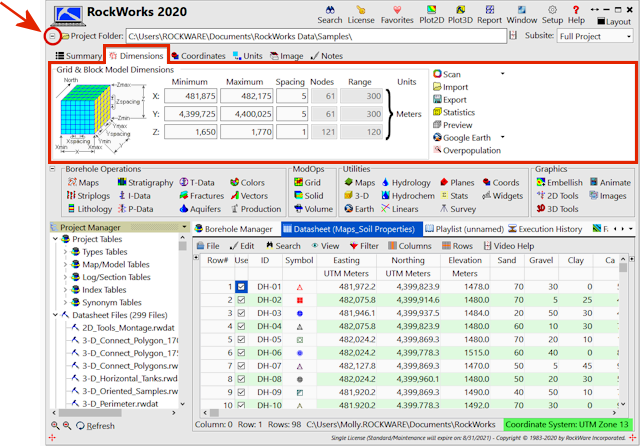
- Click on the Dimensions tab to view the project dimensions.
Notes:
- The Project Coordinate system and units, shown in the Coordinates tab, are already established. These are defined when a project folder is first created. For this Samples project, the project space is defined as UTM meters (NAD-83, Zone 13).
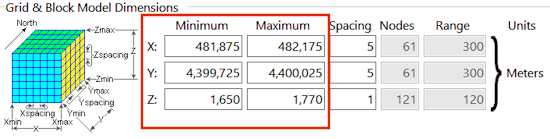
- The Grid & Block Model Dimensions are the actual coordinate values that represent:
- The extents of the project space: western, eastern, southern, northern, base elevation, and top elevation coordinate boundaries.
- The spacing of the nodes which will determine the density of grid models (XY) and solid models (XYZ) that you interpolate.
There are several ways to establish the Grid & Model Dimensions: (1) Type the coordinate values into the prompts. (2) Use the Scan | Datasheet -> Dimensions button, to the right, to scan the coordinates for a datasheet. (3) From a rectangle you draw on an existing map. (4) Importing from a saved file.
In your own work, the Scan | Datasheet -> Dimensions is the easiest method to quickly establish coordinate extents. For this project, we'll just have you confirm that the existing coordinates are correct.
- Confirm the Min and Max Coordinates: Be sure these are set as shown here; you can type in the numbers as necessary.
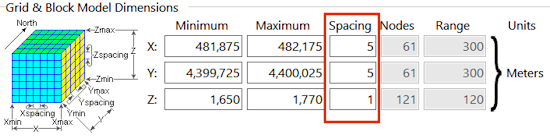
- Set the Node Spacing:
- X-Spacing: Be sure this prompt is set to: 5. This means that there will be a model node placed every 5 meters from west to east across the project space. This will generate 61 nodes from west to east in the models. You’ll note that when you change the Spacing setting, the number of nodes represented will be updated automatically.
- Y-Spacing: Type in: 5. This will generate 61 nodes from south to north in the models, also at a 5-meter spacing.
- Z-spacing: Type in: 1. This means that the nodes will be 1 meter apart from the base of the project to the top. This will affect solid models only.
! In your own work, the appropriate node spacing will depend on the spacing of your wells and downhole measurements. See How Dense is Dense Enough for some tips.
! The output dimensions settings are stored in the project database, and are loaded each time you access that project folder.
 Viewing and Setting Your Output Dimensions

RockWare home page
 Back to map menu | Next (point map)