 Estimated time: 2 minutes.
Estimated time: 2 minutes.
A Pie Chart Map is a type of symbol map in which each map location is marked with a small pie chart representing a user-selected number of components for that location. We will display the sand-gravel-clay components by site.
! You need to have completed the previous lesson before continuing.
 Plot Component #1: Checked. This tells RockWorks to include the data for "component 1" in the pie symbols.
 Explode: unchecked. Plot Component #2: Checked. This tells the program to include the data for "component 2" in the pie symbols.
Explode: unchecked. Plot Component #3: Check this, so that the program will include another component in the symbols.
Explode: unchecked. Plot Component 4 – Plot Component 9: Be sure these are all un-checked.
Explode: unchecked. Plot Component #2: Checked. This tells the program to include the data for "component 2" in the pie symbols.
Explode: unchecked. Plot Component #3: Check this, so that the program will include another component in the symbols.
Explode: unchecked. Plot Component 4 – Plot Component 9: Be sure these are all un-checked. Fixed.
Labels : Insert a check here to include labels with the pie symbols. Set the Orientation to
Fixed.
Labels : Insert a check here to include labels with the pie symbols. Set the Orientation to  Horizontal. Automatic Offset: Uncheck this. In your own work this can be a very handy way to prevent overplotting. Background Image Labeled Axes Map Overlays Other 2D Files Peripherals Border
 The program will read the records in the data set and create for each record a small pie chart illustrating the relative Sand-Gravel-Clay components. The mini-pie-charts will be placed at their sample's X,Y coordinates in the map.
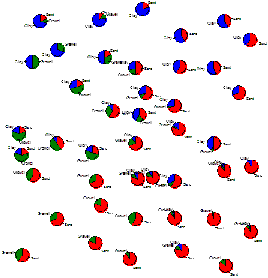
Note how the sandy soils in the southeast grade into clayey soils in the north and west.
If you are interested in adding border annotation to this map, save the map as instructed below, and then jump to the RockPlot2D tutorial.
 Back to component menu

