 Estimated time: 4 minutes.
Now we will jump from the Striplogs menu, where we plotted observed data in log diagrams, to the I-Data menu, where the downhole quantitative data will be interpolated into a continuous model.
In this lesson, you will create a solid model and 3-dimensional isosurface diagram of the project's Benzene Soil measurements. The program will load the recorded borehole data, that you viewed in logs and log sections already, and extrapolate the benzene values throughout the project. This modeling process basically "fills in the blanks" between the logs. RockWorks offers several modeling algorithm to do this extrapolation.
! You must be using RockWorks in Trial mode, or have a Standard or Advanced license to run this modeling program.
 Before continuing, be sure you have opened the sample project, established the output dimensions and created 3D logs, as discussed in earlier lessons.
- Back at the Borehole Manager, click on the I-Data menu and select the Model option.
- Establish the modeling settings:
 Create New Model: Click in this button, and expand this item to define the input data and modeling settings.
- I-Data Track: Click here to select from the pop-up list the column titled Benzene Soil. Expand this heading and be sure that none of the data filters are turned on.
- Solid Model Name: Click to the right of this label and type in: benzene soil
This will be the name assigned to the solid model to be created, with an ".RwMod" file name extension.
- Solid Modeling Options: Click the Options button to the right, to access the various modeling settings.
- Algorithms: These options determine the method that will be used to interpolate the I-Data model. If you’ve restored the program defaults, the IDW Anisotropic method (which represents Inverse-Distance, Anisotropic) should be selected. This will be fine; you can click on that tab to read additional information.
! Note that if you choose a different modeling method, the options that are visible will change.
- Additional Options - Turn the following items on/off. Note that you can click on any of these tabs to read more information.
- Dimensions: These define the extents of the output model.
- Based on Output Dimensions: Be sure this option is checked.
 Confirm Model Dimensions item can be left unchecked (though in your own work, this is a handy way to double-check the model extents and node spacing).
 Decluster: Checked.
 - Add Points: unchecked.
- Cutoff - H, Cutoff - V: unchecked.
- Logarithm: Unchecked. If used, this can be helpful for interpolation of highly anomalous data.
- Smoothing: Unchecked.
- HiFi: unchecked.
- Distance: unchecked.
- Polygon: unchecked.
- Superface: Check this to activate an upper surface (grid) filter, and click on the tab to access the settings. Choose Automatic. RockWorks will automatically determine a surface representing the ground and filter out (nullify) nodes that sit above that surface. Buffer Size: Set this to 0.
- Subface: Check this option to activate a lower surface filter, and choose Automatic to filter nodes below the borehole bases. Buffer Size: Set this to 0.
- Tilting: unchecked. If activated, this can be used to apply a tilt to the model.
- Warping: unchecked. If activated, this can be used to warp a model based on a surface.
- Faulted: unchecked. If activated, you can use a 3D "fault file" to introduce faults into your model.
- G=Color: unchecked. This is used for color modeling only.
- Undefined: Click here to select Null for undefined/filtered nodes. In this case, nodes which lie above the ground surface or below the borehole bases will be set to the RockWare null value (-1e27); they will be invisible in display and will not contribute to volume computations, etc.
- Click OK to close this window.
- Create 3-Dimensional Diagram: Check this, to tell RockWorks that you want to create a 3D diagram to represent the solid model. Expand this heading to access the diagram settings.
- Click the Options button to the right to access some of the diagram settings.
- Diagram Type: Click on this tab.
- Isosurface: Choose this - it will create a diagram in which the different G value levels can be represented as if enclosed within a "skin" that is like a 3-dimensional contour. Within RockPlot3D you can interactively adjust the minimum I-data value to be enclosed within the isosurface contour.
- Iso-Mesh: Uncheck this.
- Cage: Insert a check in this box. Click on the Cage tab to see the options.
- Dimensions: This should be set to the Automatic.
- Panels: Click on this tab and be sure these are all unchecked.
- Grids: Click on this tab and be sure that all of these are also unchecked.
- Axis Labels: Click on this tab and check these options only; you can refer to the cartoon for a preview.
- Southwest
- Base / East
- Base / South
- OK: Click OK to close this window.
- Plot Logs: Check this. The program will generate the 3D logs using the same settings we used in an earlier lesson in this section.
- Color Scheme: Click on the Options button to the right.
- This should default to a continuous cold-to-hot 2-color scheme. In your own work, if you want to display specific concentrations using specific colors you can use the Custom option, for which you create a table that lists G value ranges and the colors to represent them. Note that the color scheme can also be adjusted once the isosurface is displayed in RockPlot3D.
- Click OK to close the Color Scheme window.
- Include Color Legend: Insert a check-mark here.
- Click the Process button at the bottom of the I-Data Model window. The program will do two things:
It will interpolate a solid model using the specified project dimensions. It will use the Inverse-Distance Anisotropic method of extrapolating Benzene Soil concentrations for those areas with no boreholes. Be patient, it might take a few minutes.
Once the model is completed and stored on disk under the name "benzene soil.RwMod", the program will create a 3D diagram with all of the benzene concentrations displayed. The completed diagram will be displayed in a RockPlot3D tab. We'll adjust some settings to see something other than a pink blob.
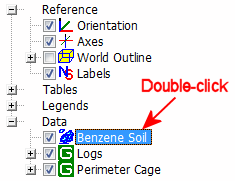
- View the isosurface model options by double-clicking on the Benzene Model item that’s listed in the data tree.
The program will display a window listing the Isosurface Options. Here’s a quick summary:
- Color scheme: Unlike the lithology model you may have created in an earlier tutorial, this solid model contains "G" values representing Benzene concentrations that range continuously from a minimum to a maximum. The default scheme will be set to Continuous, to show gradations between the low and high values.
- Draw Style: Default is Solid. You might try changing the display to Wire Frame to see the effect. Click the Apply button at the bottom of the window to make any changes you set take effect. Using Wire Frame can speed rendering of the solid if it is dense or your computer system is slow.
- Opacity: You’ll see this one in most 3D Options windows. You can make the block more transparent by reducing the percent opacity shown here. Again, use Apply to see changes take effect.
- Cap Style: This tells the program how you want the "blobs" that intersect the edge of the model to be displayed. By changing the contour interval, you can see how the concentrations change inside the isosurface.
- Iso-level: This allows you to see only selected G values in the block. See #8 below.
- Slices: This allows you to see insert horizontal or vertical slices at specific locations in the block.
If you have a minute, you should go through the next few steps to learn some of the ins and outs of viewing isosurface diagrams. If you are in a hurry, you can review these lessons later in the dedicated RockPlot3D tutorial.
- Adjust the View: Leave the Isosurface Options window open while you Rotate
 or Pan
  the image pane display. (You have full control over the image display even when one or more Options windows are open.) Or, use the View | Above, View | Below, or View | Compass Points tools to return to a pre-set view.
- Change the iso-level being displayed: Click back in the Isosurface Options window, and find the slider bar in the Iso-Level section. The left-hand value on this slider corresponds to the minimum benzene concentration, and the right-hand value represents the maximum concentration. Drag the slider bar slowly to the right, with the intention of changing the minimum benzene level displayed, to see how the display changes. In your own work you can use the slider or just type a minimum desired value into the prompt.
Remember, you can rotate, pan and zoom into/out of the image at any time without closing the Options window to get a better view.
- Show the current volume: This is really cool. Insert a check in the Show Volume check-box and the program will display right in the Options window the total volume in the model at the minimum benzene concentration and above. If you drag the slider bar to change the minimum isosurface, the volume will change.
- Click the Close button to close the Options window.
- Turn off the logs: Remove the check-mark from the Logs item in the data pane, and you'll see the borehole logs disappear.
- Close this RockPlot3D window by clicking in its upper-right Close box
 . Answer "no" to the do-you-want-to-save prompt.
 Solid Modeling Reference, Creating I-Data Models
 Back to I-Data menu | Next (interpolated cross section)

RockWare home page