RockWorks | Utilities | Solid |
Boolean Operations | Boolean Conversion
This program transforms a real number solid model file to a Boolean (true/false) file. In this process, the G-values of nodes are set to "1" if their original G-value falls within a user-specified range, and to a "0" if the G-values do not fall within the range. Or, you can choose a "true" and "false" value of your choice. You can then run the Boolean model through available filters or multiply it to the original model to zero-out areas where your desired criteria aren't met.
Menu Options
Step-by-Step Summary
Menu Options
- Input model: Click to the right to browse for the name of the existing RockWorks solid model (.RwMod file) that the program is to read and filter, accessing other drives or folders as necessary.
! This must be a real-number (not a Boolean) model.
- Boolean Output Model: Type in the name to assign to the new Boolean solid model that the program will create, which results from the filtering operation. This output file will contain node G-values of "0" and "1" only (or the other values you define below).
- Thresholds:
- Upper: Enter the maximum G-value in the input solid model that is to be assigned the value you define below for "true". All model nodes with values greater than the Upper value will be assigned the value for "false" you define below. If you want all high values to be assigned a "true" value, then enter a very large number, such as "9999999".
- Lower: Enter the minimum G-value in the input solid model that is to be assigned the value defined below for "true". All model nodes with values less than this value will be assigned the value for "false" you define below. If you want all low values to be assigned a "true" value, then enter a large negative number, such as "-9999999".
- True/False Values
- True: Click to the right to type in the value to be assigned to the nodes that fall within the thresholds above. (Default = 1)
- False: Click to the right to type in the value to be assigned to the nodes that fall outside the thresholds above. (Default = 0)
- Create 3-Dimensional Diagram: Insert a check here if you want to create a plottable 3D diagram of the resulting solid model. Expand this item to establish the diagram settings.
- Diagram Type: Choose Isosurface to display the solid model as if enclosed in a "skin". Choose All Voxels to display color-coded voxels. (More.)
- Iso-Mesh: Use this option to plot a series of polylines that represent three-dimensional contours at a user-defined cutoff. Expand the heading to establish the settings. (More.)
- Color Scheme: Click on the Options button to the right to access a variety of pre-set color schemes, or to create your own. For this Boolean model, you can choose "2 Logical Colors" to assign a specific color for the "0" and "1" nodes. (More.)
- Reference Cage: Insert a check here to include vertical elevation axes and X and Y coordinate axes in the 3D diagram. Expand this item to set up the cage items. (More.)
- Include Legend: Insert a check here to include an index to the colors and G values in the diagram. (More.)
Step-by-Step Summary
- Be sure you have a real number RockWorks solid model already created, for input into this program.
- Access the RockWorks Utilities program tab. It is not necessary to enter data into the main datasheet because RockWorks will be manipulating an existing solid model.
- Select the Solid | Boolean Operations | Boolean Conversion menu option.
- Enter the requested menu settings, described above.
- Click the Process button to continue.
The program will load the input solid model file and compare the G-value of each node to the requested data range. All nodes with values that lie inside the range are assigned the "True" value you defined. All nodes with values that lie outside the desired range are assigned the "False" value you defined. The resulting True/false model will be stored on disk under the output solid model file name. If you have requested a diagram, it will be displayed in a RockPlot3D tab.
- You can adjust any of the input options along the left side of the window and click the Process button again to regenerate the model and display.
! Each time you click the Process button, the existing 3D display will be replaced.
- View / save / manipulate / print the diagram in the RockPlot3D window.
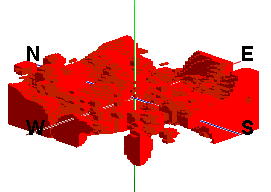
Tips: Boolean models contain only two values, such as 0 and 1. If you want to view only the "true" values (G=1), access the solid model's options (double-click on the Boolean Solid item in the data listing) and set the minimum Iso-Level value to 0.5 (for isosurfaces) or the minimum all-voxel filter to 0.5. This will hide all of the 0-value nodes. You should see something like the picture at the top of this page.
Example: Let's say you have created a solid lithology model that represents different rock types encountered in each drill hole with different integer values (gravel = "1", sand = "2", clay = "3", and soil = "4"). Perhaps you are interested only in those areas containing clay. You could set the Boolean Conversion tool to a minimum of "3" and a maximum of "3" in order to filter out all but the clay zones. The resulting Boolean model would contain G values of "1" where clay exists, and G values of "0" where clay does not. Now, you can apply a variety of other filters (thickness, stripping ratio, and density) also listed in the Boolean Operations menu.
 Back to Solid Menu Summary

RockWare home page