Map| Borehole Locations to Google Earth (Advanced)
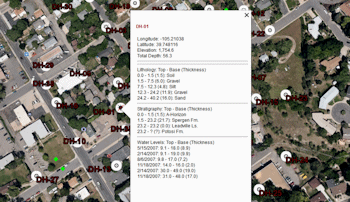
Use this tool to display your borehole locations with symbols in Google Earth. The program will use the Google Earth Icon symbol currently displayed in the Location tab for each hole. You can also include borehole labels as well as other data in the borehole description fields, such as lithology, stratigraphy, water levels, and comments; these can be accessed in Google Earth by double-clicking on the symbol. Well traces for deviated holes can also be included.
Translation of your borehole coordinates to longitude/latitude will occur automatically. Google Earth is a separate program, installed separately from RockWorks.
Menu Options
Step-by-Step Instructions
Menu Options
- Symbol Size: Use this to define how large the map location symbols will appear in Google Earth. The default = 1.0; a larger value will create larger symbols, and a smaller value will create smaller symbols.
- Include Labels: Insert a check here to include borehole ID labels in the output map. Expand this heading to define the color for the labels and the size (default = 1.0). Labels are included in the examples on this page.
- Show Well Paths (Inclined & Deviated): Insert a check here if any of your holes are not vertical and you want to include a straight line connecting the XY location for the drillhole top and base. Expand this heading to select the well path line color and thickness in pixels (default = 3). You can also choose to plot a symbol at the TD location - expand this heading to choose the symbol design (click to the right) and size (default = 0.5).
- Linked Description Includes...: Expand this heading to define any/all additional data to include in the Description fields in Google Earth. The example below illustrates borehole description fields listing lithology, stratigraphy, and water level data, as displayed in Google Earth.

Step-by-Step Summary
- Access the Borehole Manager program tab.
- Enter/import your data into the Borehole Manager database. (More.)
- Select the Map | Borehole Locations to Google Earth (Advanced) menu option.
- Enter the menu items as described above.
- Click Process to create the map.
The program will create a map of the well locations, reading the location information and symbol style from the Location tabs. Requested borehole ID labels will be pulled from the Location table. It will create a KMZ (zip) file containing the KML file. The Google Earth KML and KMZ file names will be assigned automatically.
- If RockWorks displays the KMZ name in a popup window for your reference, you can confirm:
- Automatically load file into Google Earth: Be sure this is checked if you want to display the output at this time.
- Show this message every time a KMZ File is Created: If checked, this window will be displayed each time a Google Earth output is created. Uncheck this if you prefer not to see this window in the future.
(Both of these settings are also available via the Preferences menu.)
- Click OK to continue or Cancel to cancel the operation.
The resulting map will be displayed in Google Earth, if requested.
"Google" is a trademark of Google Inc.
 Back to Map menu - Summary

RockWare home page