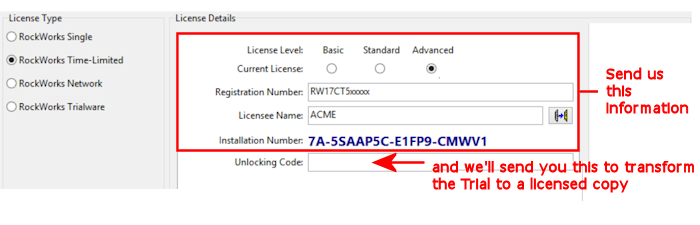
- License Level: Choose the feature level of RockWorks that you purchased. This will be shown in your sales receipt..
- Registration Number: Type into this field the set of numbers and letters that identify your license. The registration number is printed on your receipt, and on your book and CD if you received these. The registration number might start with the characters RW17CT or RW17AT. Contact RockWare if you can’t locate this number.
- Licensee Name: Type in your organization’s name.
Tip: Click the
 button to copy the Installation Number, Licensee Name, and Registration Number from the startup screen to the Windows clipboard.
Tip: Click the "Request Unlocking Code via the Web" button at the bottom of the window to connect your browser to RockWare's online registration form.
Tip: If you need to wait for your unlocking code, go ahead and run the program in trial mode. All work done in trial mode is fully usable once you license the program.

