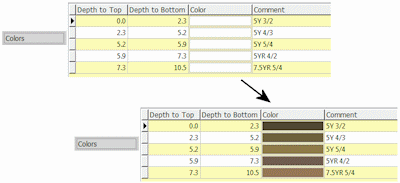
RockWorks | Borehole Manager | Colors | Analyze | Comments -> Colors
This program is used to read the text Comments within the project's Color worksheets and convert them to Windows color samples, storing them in the Color cells. This provides a means of translating field notes, for example, to actual colors. The translation is based on entries in the Color Names table. This table is installed with RockWorks and, at the time of this writing, contains some generic color names as well as Munsell colors; you can add your own descriptions to customize the table for your work (company colors, other languages, etc.).
Feature Level: RockWorks Standard and higher
Menu Options
Step-by-Step Summary
Follow these steps to sample and record color data from existing color descriptions:
The program will read the Comment data for the selected boreholes. Those Comments located in the Color Names table will be polled for their Windows color numbers, which will be recorded back to the Colors worksheets. Those intervals without comments, or with comments unreferenced in the Color Names table will either be assigned the default color or left unchanged, as you defined above.
See also:
 Back to Colors Menu Summary
