 Estimated time: 5 minutes.
 Estimated time: 5 minutes.
Variably-scaled symbol maps are point (symbol) maps in which the size of the symbols vary according to a measured value at each site, read from the main datasheet. This can be an effective tool to visualize quickly sites with low versus high values.
! It is assumed that you have opened the "Maps_Surface_Geochemistry" data file as discussed in the first lesson of this section.
 Symbols: Be sure this option is checked so that the map will include location symbols.
 Uniform: Uncheck this Column-Based: Check this option. This tells the program to use symbols stored in a column in the datasheet to represent the map locations.
 Variable: Choose this option to request that the symbols be sized differently, based on a measured value.
Range: Click in this radio button.
Circles: Unchecked. Table-Based: Unchecked. Images: Unchecked.
Variable: Choose this option to request that the symbols be sized differently, based on a measured value.
Range: Click in this radio button.
Circles: Unchecked. Table-Based: Unchecked. Images: Unchecked. 
Symbol Labels: Unchecked Background Image: Unchecked. Labeled Axes: Check this item and click this tab.
Automatic. This will scale the map border to fit around the map components. Map Overlays: Unchecked Other 2D Files: Unchecked Peripherals: Unchecked Border: UncheckedRockWorks will scan the datasheet, determine the location coordinates for each sample site, and create a point map with symbols and border annotation. The symbol types are read directly from the main datasheet. Their size is determined by the Gold value listed for each site.
The completed map is displayed in a new RockPlot2D tab in the options window.
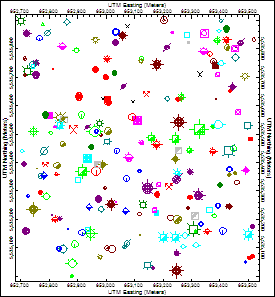
You may have noticed that this map looks a little busy. With all of the different symbols, colors, and sizes, it's difficult to see anything in particular standing out, especially our four samples of interest among 299 others. Let's create another map with slightly different settings.
Click the Symbols tab.
Column-Based: Remove the check-mark from this option. Table-Based: Instead, insert a check in this option, in the lower-right corner of the window. This tells the program it is to scale the symbols based on listings in a "Range Table."
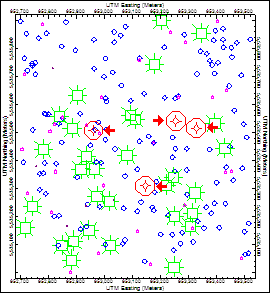
This range table is set up according to the mean and standard deviations as displayed in the histogram in the previous lesson. For example, sites with Gold values ranging from 0 to 0.082 will be plotted with the small circle, in black, at a size of 0.5 percent of the map width. Sites with Gold values ranging from 0.120 and above will be plotted with circle symbols in red at a size of 9 percent of the map width. This is the range that includes the four samples of interest.
RockWorks will create another point map of the "Surface Geochemistry" data set, this time using the symbols declared in the Gold Pointmap table at the declared sizes and colors. This time, the four red circles really stand out!
 Back to component menu | Next (ternary diagram)

