 Estimated time: 2 minutes.
 Estimated time: 2 minutes.
A frequency histogram is a graph that displays the distribution of real number values, read from a single datasheet column, by percent or actual occurrences.
! It is assumed that you have opened the "Maps_Surface_Geochemistry.RwDat" data file as discussed in the previous lesson.
 Plot Statistics: Check this box.
Verbose: Check this option. Plot X-Axis Labels: Check this setting. Plot Y-Axis Labels: Check this option.
Plot Statistics: Check this box.
Verbose: Check this option. Plot X-Axis Labels: Check this setting. Plot Y-Axis Labels: Check this option.
 Plot as Percentages: Un-check this box. This tells the program to plot actual occurrences rather than percent.
 Linear: Click in this radio button.
Automatic: Choose this linear scaling option. This will set the bins to 1/10th the standard deviation. In your own work, if you prefer to declare the actual number of units for each bin, you can select the Manual option. Discrete: Choose this option. This will apply different colors to the bars in the graph based on their relationship to the mean and standard deviation. You can view/adjust the default colors. Legend: Unchecked Fixed Width:Height Ratio is off Other 2D Files: Unchecked Peripherals: Check this box and click the tab.
Title: Check this option to activate the diagram titles:
Border: Unchecked
Linear: Click in this radio button.
Automatic: Choose this linear scaling option. This will set the bins to 1/10th the standard deviation. In your own work, if you prefer to declare the actual number of units for each bin, you can select the Manual option. Discrete: Choose this option. This will apply different colors to the bars in the graph based on their relationship to the mean and standard deviation. You can view/adjust the default colors. Legend: Unchecked Fixed Width:Height Ratio is off Other 2D Files: Unchecked Peripherals: Check this box and click the tab.
Title: Check this option to activate the diagram titles:
Border: UncheckedRockWork will build the frequency histogram and display it in a new RockPlot2D window on the screen. RockPlot2D is the plotting program for maps, logs, and other 2D diagrams.
For this type of geochemistry data, the values of interest lie in the Slightly Anomalous and Anomalous groupings, particularly the latter, beyond the mean plus 2 standard deviations.
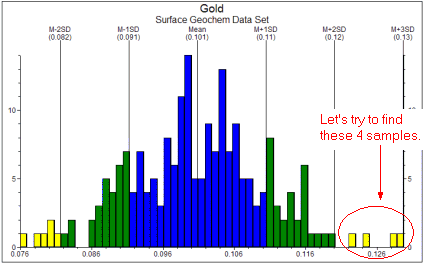
Let's take a look at where these samples lie; the next tutorial lesson teaches you how to build a proportional symbol map, in which those sites with larger gold values are plotted with larger symbols.
 Back to component menu | Next (variable symbol map)

