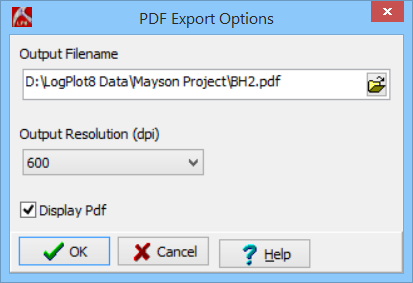
Use the LogView | File | Export to PDF menu option to export the current graphic log (LPT8 plot file) to PDF format. Alternatively, you can select to Export all open LogViews to PDF.
- Create or open the LogPlot log (LPT8 file) that you wish to export.
- Select the File | Export to PDF menu option.

- Establish the requested settings.
- Output Filename: Click on the small browse button to the right of this prompt to enter the name for the PDF file to be created.
- Resolution: Choose the desired resolution from this dropdown list, in dpi.
- Pattern Density Factor: Use to adjust the density of patterns to be shown in log columns.
- Margin Adjustments:Type in the numeric value for the Left/Right and Top/Bottom header you wish to set in the PDF image to be created.
- Page Select Option: Select all or a specific page range to export. The option that is selected will allow you to edit those settings.
- Display PDF: Check this box for the PDF file to be opened automatically upon completion in the PDF viewer you have installed on your computer. (A viewer is not installed with LogPlot.)
- Click OK.
LogPlot will export the log, as displayed, to PDF format. It will display the PDF file in your default viewer, if requested.
 Back to LogView Introduction

RockWare home page