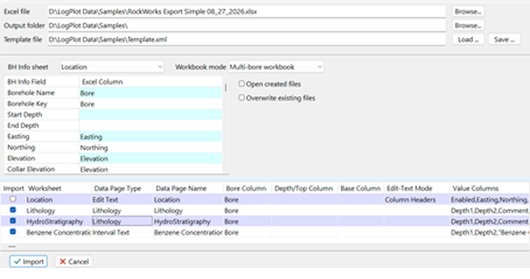
Use the Data Editor's File | Import | Excel (Multi-Sheet) importer to create LogPlot data files from an Excel workbook containing multiple data worksheets. The workbook may contain data for one borehole or multiple boreholes.
- One .ldat8 file is created for each borehole.
- Microsoft Excel must be installed on the computer running LogPlot.
Previous versions of LogPlot required data to follow a specific format during import. Although this structure is no longer required when preparing data for import, LogPlot can still automatically map Data Page Types and fields when this legacy format is used.
You can find more information about the legacy data format HERE.
The workbook should contain:
- A borehole-information worksheet containing one row for each borehole.
- One or more data worksheets containing lithology, interval, point, curve, text, symbol, or other LogPlot data.
- In a multi-borehole workbook, a column in each data worksheet that identifies the borehole associated with each row.
Example Borehole Information Worksheet

Example Lithology Worksheet
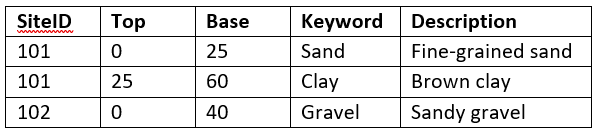
The borehole identifier in each data worksheet must match the mapped Borehole Key from the borehole-information worksheet. If no separate key is mapped, the borehole name is used.
- Open the LogPlot Data Editor.
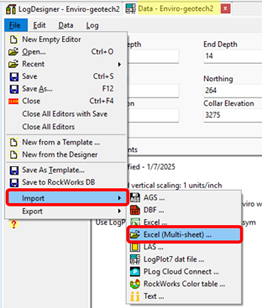
- Select File | Import | Excel (Multi-sheet):
- Select the Excel workbook that has been saved on your computer.
- In the Excel Multi-Borehole Import window select an Output folder. LogPlot saves the resulting .ldat8 files in this folder

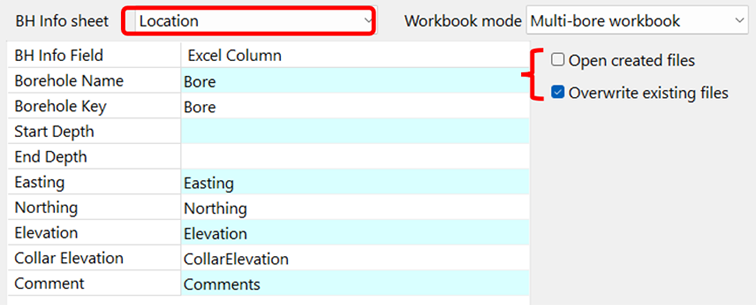
- Select the Excel worksheet that includes information that will be stored in the BH Info Tab in the LogPlot data files (Easting, Northing, Elevation, etc.)
- Verify the Workbook mode:
- Multi-bore workbook creates a separate file for every borehole listed on the borehole-information sheet.
- Single-bore workbook imports the workbook into one LogPlot data file.
- In the BH Info Field grid, associate the LogPlot borehole fields with the appropriate Excel columns. Available fields include: Borehole Name, Borehole Key, Start Depth, End Depth, Easting, Northing, Elevation, Collar Elevation, and Comment.
A Borehole Name is required for a multi-borehole workbook. The other fields are optional.
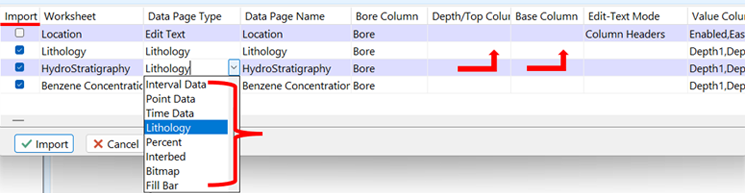
- Review and edit the worksheet mapping grid. Each row represents an Excel worksheet. Fields that are required will be highlighted in red.
- Import: Enable the checkbox for each worksheet you want to import.
- Worksheet: This displays the Excel worksheet names.
- Data Page Type: Select the corresponding LogPlot data-page type.
- Data Page Name: Specify the name assigned to the Data Tab in the resulting data files.The program will automatically populate it with the Worksheet name.
- Bore Column: Select the column that identifies the borehole. This is required for multi-borehole imports.
- Depth/Top Column: Select the depth or interval-top column.
- Base Column: Select the interval-base column when applicable.
- Edit-Text Mode: Select how Edit Text or Notes data are arranged.
- Value Columns: Select or map the remaining Excel columns to LogPlot fields.
LogPlot attempts to determine these settings from worksheet names and column headings. Review the selections before importing.
- Select Open created files to open the resulting data files in separate Data Editor tabs.
-OR-
- Select Overwrite existing files to replace files with the same borehole names without prompting. If this option is not selected, LogPlot lets you overwrite the file, select a different filename, or cancel the import.
- Click Import.
LogPlot creates one .ldat8 file for each imported borehole. The filename is based on the borehole name. Characters that are not valid in Windows filenames are replaced with underscores.
Edit Text and Notes worksheets support two layouts:
- Column Headers: Each selected Excel column becomes a named Edit Text field.
- Field/Value Columns: One column contains field names and another contains their corresponding values.
Use the button in the Value Columns field to select or map the appropriate columns.
After configuring an import, click Save beside Template file to save the worksheet and column mappings as an XML template.
For another workbook with the same organization:
- Open the workbook in the Excel Multi-Borehole Import window.
- Click Load beside Template file.
- Select the saved template.
- Review the mappings and click Import.
The template stores the import configuration only; it does not contain the workbook data.
Choose File | Save to save each borehole's data as a LogPlot LDAT8 file. (See Saving Data Files.)
- Borehole and column-name comparisons are not case-sensitive.
- Rows without a mapped depth or top value are ignored for depth-based data pages.
- Blank borehole-name rows on a multi-borehole setup sheet are skipped.
- The importer can create the selected output folder if it does not already exist.
- If warnings occur, LogPlot offers to display the import error log after processing.
 Back to Importing Data

RockWare home page