RockWorks | Borehole Manager | File |
Export | T-Data | T-Data -> CSV
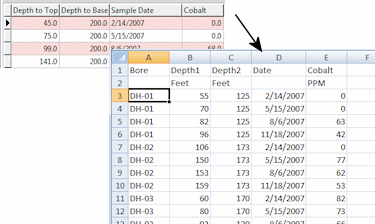
This program reads data from the current project’s T-Data (Time Intervals) table and exports the downhole data for all listed tracks to a CSV file for use in Excel or other applications. The output file will have the same column order as the T-Data table in the database (depth1, depth2, date, track 1, track 2, etc.). The export can be specific to a single borehole or to all enabled holes.
Menu Options
Step-by-Step Summary
Menu Options
- Items to Include:
- Current: Choose this to export the T-Data for the currently-selected borehole only.
- Enabled Only: Select this option to export the T-Data for all active boreholes.
- All (Enabled & Disabled): Click in this radio button to export all of the T-Data for all of the boreholes in the database, regardless of their enabled status.
- Output Files:
- Single File: Choose this for the exporter to output a single file. The first column in the output file will list the borehole ID. You can refer to the image at the top of this topic for an example of the column layout of the single file option.
- ASCII Output File: Click here to type in the name for the CSV file to be created.
- Edit/View File: Check this box if the file is to be opened into the default CSV viewer on your Windows system (typically Excel) after it's created.
- Multiple Files: Choose this option if you want a separate CSV file created for every borehole. In this case, the borehole ID will not be listed in the output data, but will be included in the file name. For example, if your borehole IDs are DH-1, DH-2, and DH-3, then the multiple files that will be created will be named "DH-1.csv", "DH-2.csv", "DH-3.csv", etc.
- Data Directory: Click here to browse for the folder where the CSV files are to be saved.
- Root Filename: You can use this prompt to type in text to be appended to the file name before the borehole ID. For the example above, a Root Filename of "Well" would result in file names of "Well_DH-1.csv", "Well_DH-2.csv", "Well_DH-3.csv", etc. You can leave this blank for no root name.
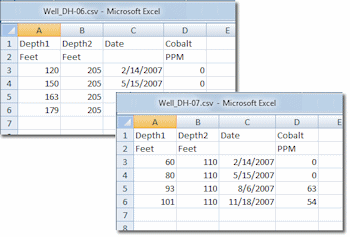
- Include Column Titles / Units: Check this box to include column and unit titles in the output file, as shown in the graphic examples. Expand this heading to type in the name of the units for the depths, such as "feet" or "meters".
- Delimiter: You should use "44 (Comma)" for this export so that the delimiter matches the CSV file type.
Step-by-Step Summary
- Access the RockWorks Borehole Manager program tab.
- Be sure there is T-Data listed for one or more boreholes.
- If you wish to export the data for selected boreholes only, be sure those boreholes are enabled.
- Select the File | Export | T-Data | T-Data -> CSV program option.
- Enter the requested menu settings, described above.
- Click the Process button to continue.
The program will read the T-Data for the selected boreholes and list all tracks in one file or in multiple files, as requested.
See also
 Back to Exporting Data

RockWare home page