RockWorks | Borehole Manager | P-Data | Analyze | Standardize
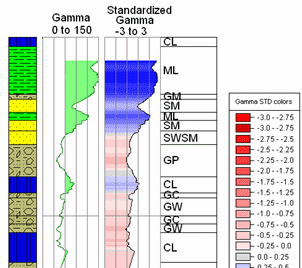
Use this program to standardize values in a P-Data track, for one borehole, all boreholes, or enabled boreholes. This is helpful if you have a single track of data which was measured using different instruments, yielding disparate G value ranges. This tool will record new values based on standard deviations from a selected mid-line value. It can standardize separately for saturated versus unsaturated zones.
Feature Level: RockWorks Standard and higher
Menu Options
Step-by-Step Summary
Menu Options
- Include Options:
- Current: Choose this to perform the data standardization on the currently-selected borehole only.
- Enabled Only: Choose this to perform the data standardization only on those boreholes which are enabled. This can be handy if you need to run the standardization using different settings for different groups of boreholes.
- All (Enabled & Disabled): Choose this to perform the operation on all boreholes.
- Input Track: Click to the right to select the existing P-Data column that contains the measurements to be analyzed.
- Output Track: Click to the right to select the P-Data track where the output measurements are to be recorded. Any existing data in this track will be overwritten.
! Note that this is a P-Data column that must already exist.
- Mid-Line Method (Unsaturated): Use these settings to define how the midline of the data is to be defined (upon which the measurements will be standardized) either for the entire log (no I-Data saturation zones are defined, below) or for the portions of each hole outside the saturated zones (I-Data saturation Zones are defined). The Unsaturated Midline is defined separately for each borehole.
- Average (Mean): Click here to set the midline for each borehole to the mean of the values in the input track.
- Median: Choose this option to set the midline for each borehole to the median value of the input track. The median represents the value for which half of the samples for the borehole have a lesser value and half a greater value.
- Mode: Choose this option to set the midline for each borehole to the mode value of the input track. The mode represents the measurement with the greatest number of occurrences in each borehole.
- Constant: Choose this to establish a specific value to be used as the midline for all processed boreholes. Type that value into the prompt.
- Database Field: Choose this option if you have created a specific field in the project database's Location table where the midline for this P-data track for each borehole is defined. Click on the Field Name item to select the name of this existing database field.
- Save Midline Value: You can activate this option if the program is computing the midline value (average, median, or mode) and you want this value stored for each borehole in a specific database field. Click on the Field Name item to select the field into which the computation will be stored. This field must already exist in the project's Location table.
- Mid-Line Method (Saturated): Use these settings to define how the midline of the data is to be defined for the portions of each hole within the defined saturated zones (I-Data saturation Zones are defined, below). The Saturated midline is defined separately for each borehole.
- Average (Mean): Click here to set the Saturated midline for each borehole to the mean of the values in the input track.
- Median: Choose this option to set the Saturated midline for each borehole to the median value of the input track. The median represents the value for which half of the samples for the borehole have a lesser value and half a greater value.
- Mode: Choose this option to set the Saturated midline for each borehole to the mode value of the input track. The mode represents the measurement with the greatest number of occurrences in each borehole.
- Constant: Choose this to establish a specific value to be used as the Saturated midline for all processed boreholes. Type that value into the prompt.
- Database Field: Choose this option if you have created a specific field in the project database's Location table where the Saturated midline for this P-data track for each borehole is defined. Click on the Field Name item to select the name of this existing database field.
- Save Midline Value: You can activate this option if the program is computing the Saturated midline value (average, median, or mode) and you want this value stored for each borehole in a specific database field. Click on the Field Name item to select the field into which the computation will be stored. This field must already exist in the project's Location table.
- I-Data Saturation Zones: Check this box if the data is to be standardized separately for saturated versus unsaturated zones, based on measurements in an I-Data column. Click the Saturation Track item to select the name of the existing I-Data track in which the saturated depth intervals are defined. These must be defined with values of "1" for saturated depths, and "0" (or omitted altogether) for depths that are not saturated.
! If this box is not checked, then all data for each borehole will be standardized using the settings defined under Mid-Line Method (Unsaturated).
Example: This could be an I-Data track labeled "Saturation" with a value of "0" for the vadose zone from 0 to 25 feet, and for "1" for the depth interval below the water table.
- Outlier Filter: Insert a check here to define high and/or low values to be filtered from the P-Data track before analysis.
- Low Outlier Value: Click to type in the value below which the P-Data measurements are to be filtered from analysis.
- High Outlier Value: Type in the value above which the measurements are to be removed.
Step-by-Step Summary
- Access the RockWorks Borehole Manager program tab.
- Enter/import your data into the Borehole Manager. This tool specifically reads data from a P-Data track.
- If you wish to apply a saturated zone filter, be sure you have these zones defined with "1"s in an I-Data track.
- Create, if necessary, a column in the P-Data tab where the standardized data will be stored. See Defining the P-Data Columns for more information.
- Select the single borehole to be processed. Or, if you will be processing multiple boreholes, be sure those are enabled.
- Select the P-Data | Analyze | Standardize menu option.
- Enter the requested menu settings, described above.
- Click the Process button to proceed.
The program will read the contents of the input P-Data Track for each requested borehole. It will determine the mid-line as specified and compute the standard deviations for each measured value. If I-Data Saturation Zones were selected, those measurements will be standardized separately. The resulting data will be stored in the requested output track.
 Back to P-Data Menu Summary

RockWare home page