RockWorks | Borehole Manager | P-Data | Analyze | Add Random
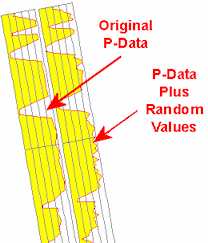
Use this program to add a random value to the existing data values in a P-Data column, storing the results in a separate column.
Feature Level: RockWorks Standard and higher
Menu Options
Step-by-Step Summary
Menu Options
- P-Data Track: Click to the right to select the existing P-Data column that contains the measurements to which random values are to be added.
- Output Track: Click to the right to select the P-Data track where the output measurements are to be recorded. Any existing data in this track will be overwritten.
! Note that this is a P-Data column that must already exist.
- Minimum Value: This setting defines the minimum possible value for the random numbers.
- Maximum Value: This setting defines the maximum possible value for the random numbers.
- No Values < 0: Check this box to assure that negative values will not be posted to the output track. If the original value + random value is less than zero, the value that will be posted to the column will be 0.
- Apply to, All Boreholes vs. Currently Highlighted Borehole: Choose whether the program is to add the random numbers to the measurements for a single borehole (the currently-selected well) or to all of the active boreholes.
Step-by-Step Summary
- Access the RockWorks Borehole Manager program tab.
- Enter/import your data into the Borehole Manager.
- Be sure the boreholes whose data is to be processed are enabled.
- Create, if necessary, a column in the P-Data tab where the new data will be listed. See Defining the P-Data Columns for more information.
- Select the P-Data | Analyze | Add Random menu option.
- Enter the requested menu settings, described above.
- Click the Process button to proceed.
The program will read the contents of the input P-Data Track and add to each value a random number that ranges between the defined minimum and maximum. The resulting values will be listed in the selected output column in the database.
 Back to P-Data Menu Summary

RockWare home page