RockWorks | Utilities | File | Import | NEIC
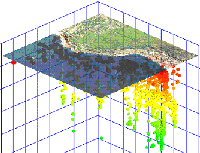
This program is used to import earthquake data from the USGS National Earthquake Information Center into the datasheet. When used in conjunction with the Map | 3D Points program, this utility can be used to view earthquake data as color-coded (by depth), size-coded (by magnitude) global maps. The NEIC data must be ASCII space-delimited in format. Because there are a variety of data layouts available from NEIC, you can define within RockWorks the column locations of the different fields (coordinates, depths, magnitudes, etc.)
Check out their web site: http://earthquake.usgs.gov/regional/neic/
Menu Options
Step-by-Step Summary
Menu Options
- Input Data
- NEIC-File: Browse for the NEIC file to be imported.
- Latitude: Expand this heading to specify the character position in the input file for the start of the earthquake latitude coordinates, and the character length of the latitude field. If the location is in the southern hemisphere, remember that the latitude will be preceded by a negative sign - be sure to note that as the start of the field. The best way to determine these positions is to open the NEIC file in a text editor or word processor, and to advance the cursor across a sample row, writing down the character position and length of each field.
- Longitude: Expand this heading to specify the character position in the input file for the start of the earthquake longitude coordinates, and the character length of the longitude field. If the location is in the western hemisphere, remember that the longitude will be preceded by a negative sign - be sure to note that as the start of the field. The best way to determine these positions is to open the NEIC file in a text editor or word processor, and to advance the cursor across a sample row, writing down the character position and length of each field.
- Depth: Expand this heading to specify the character position in the input file for the start of the earthquake depth measurements, and the character length of the depth field. The best way to determine these positions is to open the NEIC file in a text editor or word processor, and to advance the cursor across a sample row, writing down the character position and length of each field. There may be missing fields from some records.
- MB-Magnitude: Expand this heading to specify the character position in the input file for the start of the earthquake body-wave (MB) magnitude measurements, and the character length of this field. The best way to determine these positions is to open the NEIC file in a text editor or word processor, and to advance the cursor across a sample row, writing down the character position and length of each field. There may be missing fields from some records.
- MS-Magnitude: Expand this heading to specify the character position in the input file for the start of the earthquake surface-wave (MS) magnitude measurements, and the character length of this field. The best way to determine these positions is to open the NEIC file in a text editor or word processor, and to advance the cursor across a sample row, writing down the character position and length of each field. There may be missing fields from some records.
- Magnitude-1: Expand this heading to specify the character position in the input file for the start of the earthquake local magnitude measurements, and the character length of this field. The best way to determine these positions is to open the NEIC file in a text editor or word processor, and to advance the cursor across a sample row, writing down the character position and length of each field. There may be missing fields from some records.
- Magnitude-2: Expand this heading to specify the character position in the input file for the start of the earthquake moment magnitude measurements, and the character length of this field. The best way to determine these positions is to open the NEIC file in a text editor or word processor, and to advance the cursor across a sample row, writing down the character position and length of each field. There may be missing fields from some records.
- Coordinate Projections: In addition to importing the original NEIC longitude and latitude-based earthquake locations, Rockworks will also translate these coordinates into UTM meters. It does this so that if you wish to plot the earthquake locations as OpenGL spheres (scaled based on magnitude - cool), the imported depths (listed as meters) and the UTM meter locations will be in the same units. BE WARNED however that UTM translations are good only within a limited area. If your NEIC data spans numerous UTM zones or crosses the equator and/or the zero meridian, then the UTM coordinates will be faulty.
- Projection (Datum): Expand this heading to choose the desired projection.
- Zone: In order to translate coordinates between longitude/latitude and UTM, you need to define the UTM Zone for the translation.
- Automatic: (Default) RockWorks will read the range of the longitude coordinates being translated and pick the zone that best encompasses them.
- Manual: If you prefer to select the UTM Zone manually, expand this heading to do so. Typically, the chosen Central Meridian should be as close to the center of the longitude coordinate range as possible. The accuracy of the translation is greatest within a single UTM zone and decreases the farther each zone is from the zone of the selected Central Meridian.
- Output: Expand this heading as necessary to define the output file options.
- Symbol: Click on the symbol box to choose a symbol for the imported records, which can be displayed in the datasheet. These symbols can be listed with varying colors by activating the Depth Coloring setting, below.
- Depth-Coloring: Insert a check in this box to have the program color-code the symbols automatically based on earthquake depth. This would record in different colors the symbols at the locations of deeper quakes than those for shallower ones. Expand this item to enter the depth to be set to the highest-color range.
- Max-Depth: Click on the Maximum Depth item to enter the greatest depth to be included in the cold-to-hot color scheme. Any deeper sites will be set to black. For example, if the maximum depth in the NEIC data set is 600 meters, you could enter "600" at this prompt to display the deepest samples in purple/pink, the shallowest in oranges/reds, and the intermediate samples colored blue -> yellow in between. If the maximum depth in the data set is 600 meters and you enter "400" at this prompt, then the samples at 600 -> 400 meters will be set to black, and the 400 -> 0 samples will grade from purple/pink to orange/red.
Step-by-Step Summary
- Access the RockWorks Utilities program tab.
- Create a new, blank datasheet by selecting the File | New | Blank menu option. Answer "Yes" or "No" as appropriate if you are prompted whether to save any existing data that's displayed in the RockWorks window.
- Select the File | Import | NEIC menu option.
- Establish the requested menu settings, described above.
- Click the Process button to continue.
The program will import the NEIC data into the datasheet.
- Use the Map / 3D Points tool to display the earthquake locations and magnitudes in 3d.
Web Case Study
 Back to Importing Data

RockWare home page