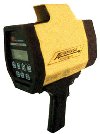
RockWorks | Utilities | File | Import | Laser Atlanta (Survey Data)
This program is used to import data from Laser Atlanta survey devices. The import will generate a datasheet with ID, symbols, and X, Y, Z coordinates.
It requires a known instrument location (in X,Y,Z) and an ASCII-format Laser Atlanta file, or a Trimble Pro XL file. This tool assumes that the distance units in the Laser Atlanta file (feet, meters, yards, etc.) are the same units that you declare for the known XYZ point.
Menu Options
Step-by-Step Summary
Menu Options
- Output Columns: Along the left side of the window, select the columns into which the output data (ID, Symbol, X, Y, and ID and Symbol fields will be recorded only if their check-boxes to the right are checked.
- Input File: Click on this prompt to select the name of the Laser Atlanta ASCII file to be imported.
- Format: Select the format of the input file.
- Instrument Location: Expand this heading to type in the known X, Y, and Z (elevation) coordinates for the instrument.
- ! These coordinates should be in the same units as the distance (also called "range") units output from the survey device. For example, if the distances are measured in meters, be sure these coordinates are also listed in meter units.
- Enter the Output Options:
- Starting Row will determine the row in the current datasheet into which the imported data will be started. You should start at 1 for a new datasheet or at the next available row for an existing datasheet.
- Decimals will determine the number of decimal places to be recorded in the output coordinates.
- Insert a check in the Point ID check-box if you want the imported records to be numbered automatically. Expand this heading to enter the starting number for the sequential ID's.
- Insert a check in the Symbols check-box if you want to include a symbol column in the RockWorks file; expand this heading to choose a symbol style and color. These can be updated individually once the import is complete.
- Show Errors: Insert a check here for the program to generate a list of errors encountered during the import.
Step-by-Step Summary
- Access the RockWorks Utilities program tab.
- To import the data into a new RockWorks datasheet, select the File | New | Blank menu option. Answer "Yes" or "No" as appropriate if you are prompted whether to save any existing data that's displayed in the RockWorks window.
- Or, to append to an existing datasheet, use the File | Open command as necessary to open that existing RwDat file, and skip down to the File | Import step, below. Be sure, also, to set the Starting Row and Point ID’s (described above) as appropriate for the existing data.
- Select the File | Import | Laser Atlanta menu option.
- Enter the requested menu settings, described above.
- Click the Process button to continue with the import.
The program will read the Laser Atlanta ASCII file and compute the X, Y, and Z coordinates for the survey points and record them in the RockWorks Utilities datasheet.
 Back to Importing Data

RockWare home page