RockWorks | Utilities | File | Import | Text
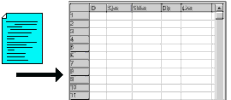
This program is used to import an existing text file of row and column data into the RockWorks datasheet. Once the data is displayed in the datasheet, you can modify the column names and types using the Columns | Column Properties menu option. The text file may contain tab characters, space characters, or comma characters as the column delimiters.
Note: Data will be imported into the datasheet starting at the currently highlighted datasheet row.
Menu Options
Step-by-Step Summary
Menu Options
- Input File: Click to the right to browse for the name of an existing text file that contains the data that is to be imported into the RockWare datasheet.
- Delimiter: A "delimiter" is the character that separates columns within an ASCII file. Click to the right to select the character that's used in the input file.
- A comma-delimited file is one in which each column of alphabetic and numeric data is separated by a comma (",") character, such as:
DH-1,14,255,241,349,350,350,220,98
DH-2,3,16711680,75,422,353,297,234,65
Or is separated by quotation marks and commas, as:
"DH-1","14","255","241","349"
"DH-2","3","16711680","75","422"
- A space-delimited file is one in which each column of alphabetic and numeric data is separated by one or more space characters. The program will determine the start of a new column of values when the next non-space character is encountered.
- A tab-delimited file is one in which each column of alphabetic and numeric data is separated by a tab character.
- Treat Consecutive Delimiters as Single Delimiter: Check this box if the input file has multiple delimiters separating each column, such as a file that consists of justified columns that are separated by spaces. The spaces that are used to justify the columns are indistinguishable from the spaces that separate the columns.
- File contains header line: Some data files contain a "header" within the first line that contains the column titles. If so, you must specify it, by checking this option, so that this program doesn't include the header line as data within the RockWare datasheet.
- Extract Column Titles from header line: If the text file contains a header line, choose this option to read the titles within the header line and use them to redefine the column titles within the RockWare datasheet.
- Skip Header Line(s): Choose this option to ignore the header lines(s) in the file being imported. Expand this heading to select how many rows are to be ignored.
- Decimation Interval: This option provides a means for "thinning" the data by extracting only those lines of text at a user-specified interval. For example, a Decimation Interval of 1 will extract every line within the input file while a Decimation Interval of 10 will extract every tenth row.
Step-by-Step Summary
- Access the RockWorks Utilities program tab.
- Select File | Import | Text menu option.
- Enter the requested program settings, described above.
- Click the Process button.
The program will import the text data and display it in the datasheet.
- To adjust column heading names, data type, and/or units, use the Columns | Column Properties option.
 Back to Importing Data

RockWare home page