Interbed Filter
Here’s how the program applies the interbed filter once processing has begun in RockWorks:
- The program compares each voxel G value stored in the input solid model to the Grade Range you requested. Voxels with values within the requested range are assigned a value of "1" (for "yes-it’s-in-the-range"). We’ll call these nodes "material" nodes for simplicity.
- The program then assigns those voxels with values outside the requested Grade Range a value of "0" (for "not-in-range"). We’ll call these "waste" nodes. This gives you the initial Boolean solid model from which the volume can be computed.
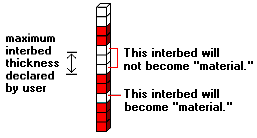
- Now, it applies the interbed filter. It looks down each vertical column of voxels within the model. It determines which areas are "interbeds" by locating "waste" nodes that lie between "material" nodes.
- It determines the thickness or height of the contiguous interbed (waste) nodes. Those areas where the thickness falls below your threshold are changed from "waste" to "material." Those interbed thickness areas greater than your threshold remain interbeds.
- In the cartoon below, the "material" zones for a single column in the solid model are colored red, with interbeds shown in white.
- The program will store the new 3D Boolean model in a temporary file.
3D Thickness Filter
Here’s how the program applies the thickness filter once processing has begun:
- It starts with the Boolean solid model either created from the source geochemistry model (filtered Yes or No for the specified Grade Value) or passed to it from the Interbed Cutoff filter, if that filter was requested.
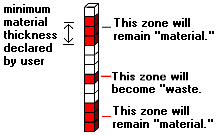
- It then applies the thickness cutoff filter. It looks down each vertical column of voxels within the model. It determines which areas contain continuous "material" nodes, and computes the thickness of each of those areas. Those individual areas where the thickness falls below your threshold are changed from "material" to "waste" (the nodes are changed from 1 to 0). Those individual areas in which the material thickness is greater than your threshold remain "material."
- In the cartoon below the "material" zones for a single column in the solid model are colored red, with "waste" areas shown in white.
- The program will store the new 3D Boolean model in a temporary file.
Total Thickness Filter
Here’s how the program applies the combined thickness filter once processing has begun:
- It starts with the Boolean solid model either created from the source geochemistry model (filtered Yes or No for the specified Grade Value) or passed to it from the Interbed Cutoff or Thickness Cutoff filters if either was requested.
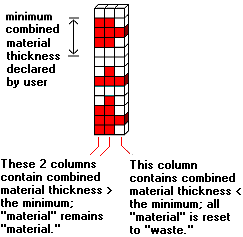
- It then applies the total thickness filter. It looks down each vertical column of voxels within the model. It determines which areas contain continuous "material" nodes, and computes the total, combined thickness of those areas.
- If the combined thickness of the "material" in that model column falls below your threshold, all of the material voxels are changed to "waste" (the nodes are changed from 1 to 0). Those areas in which the combined matierial thickness is greater than your threshold remain "material."
- In the cartoon below the "material" zones for a three columns in the solid model are colored red, with "waste" areas shown in white.
- The program will store the new 3D Boolean model in a temporary file.
Stripping Ratio Filter
Here’s how the program applies the stripping ratio filter once processing has begun:
- It starts with the Boolean solid model either created from the source geochemistry model (filtered Yes or No for the specified Grade Value) or passed to it from the Interbed Cutoff or Thickness filters if any were requested.
- It then applies the stripping ratio filter. It looks down each vertical column of voxels within the model. It determines which areas contain continuous "material" nodes, and computes the thickness for each zone of material. It determines which areas contain continuous "waste" nodes, and computes the thickness for each waste zone.
- It divides overburden (waste on top) or interburden (waste in between) by material thickness, based on the method you requested, to determine the single or multiple stripping ratio for each column in the solid model.
- Those material voxels for which the stripping ratio exceeds your maximum are reclassified as "waste" and assigned a value of 0. Those material voxels for which the stripping ratio is less than your maximum remain "material" and are assigned a 1.
- The program will store the new 3D Boolean model in a temporary file.
Polygon Clipping
Here’s how the program applies the polygon filter once processing has begun:
- It starts with the Boolean solid model either created from the source geochemistry model (filtered Yes or No for the specified Grade Value) or passed to it from the Interbed Cutoff, Thickness, or Stripping Ratio filters if any were requested.
- It then applies the polygon clipping. It looks at each vertical column of voxels within the model. If the uppermost voxel node in that column lies within the polygon, all nodes in the column remain unchanged. If the uppermost voxel node in the column lies outside the polygonal area, then all of the nodes in the column are reclassified as "waste" and assigned a value of "0."
- The program will store the new 3D Boolean model in a temporary file.
3D Distance Filter
Here’s how the program applies the distance filter once processing has begun:
- It starts with the Boolean solid model either created from the source geochemistry model (filtered Yes or No for the specified Grade Value) or passed to it from the Interbed Cutoff, Thickness, Stripping Ratio, or Polygon filters if any were requested.
- It computes the downhole trace of each borehole, taking into account any inclination or deviation. It computes the distance from each voxel in the solid model to the closest borehole. If the distance falls within the Maximum Distance you declared, the voxel will remain unchanged. If the voxel-to-borehole distance exceeds the Maximum Distance you entered, then the voxel will be reclassified as "waste" and assigned a value of 0.
- The program will store the new 3D Boolean model in a temporary file.
Create a Report
Here’s how the program applies the distance qualifications within the report:
- The program determines the distance of each solid model voxel from the nearest drill hole (projected vertically or deviated into the model).
- The program compares each distance measurement to the cutoff values you declared for each confidence interval. For each node in the Proven category, it stores the material volume for that node in the first "group." For each node whose distance value falls in the Probable category, it stores the material volume in the second "group." For nodes with distances in the Inferred category, corresponding volume values are stored in a third group. Finally, those nodes with distances exceeding the furthest qualification are stored in a fourth group.
- The program then sums each group to determine total volumes in each of the qualification categories.
- If a mass conversion is requested, then the volume units are multiplied by the unit density to determine total mass.

RockWare home page