
RockWorks | Utilities | Edit | Edit Row in Large Font Editor
The Row Editor is used to edit rows of data within the RockWorks Utilities datasheet in a custom data-entry window. The Row Editor uses large fonts and buttons for easier viewing and data-entry on tablet computers for field acquisition and processing. As you enter new data or change data in the Row Editor, the information is posted to the datasheet automatically.
Step-by-Step Summary
 or select the Edit | Edit Row in Large Font Editor menu option.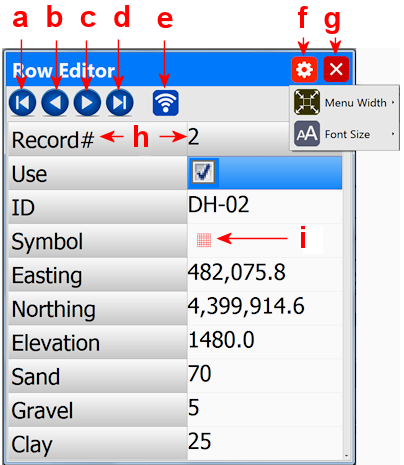
a: First Row Button: Display data for first row within datasheet.
b: Previous Row Button: Display data for previous row within datasheet.
c: Next Row Button: Display data for next row within datasheet.
d: Last Row Button: Display data for last row within datasheet.
e: Sensor Detector Button: Activate Sensor (e.g. GPS)
f: Options Button:
- Menu Width: Choose from full-screen or 800 pixels.
- Font Size: Choose from small to huge. Once a font size has been selected, the content of the Row Editor will change accordingly.
g: Close/Exit Button: This will close the Row Editor dialog.
h: The first row within the Row Editor is a fixed, un-editable row that shows the corresponding record (row) number within the RockWorks datasheet.
i: All of the special items (e.g. colors, patterns, line styles, etc.) will behave in a fashion identical to the datasheet editor. For example, if you click on a cell with a symbol in it, the symbol-selection dialog will appear.
 Back to Editing the Datasheet
