The default structure of the RockWorks borehole database is defined by the system's data dictionaries. You can add fields to a data table for storage in the database, and this customization will be stored in the current project's data dictionaries.
! At the time of this writing, RockWorks will not be able to process these additional, customized data fields. For example, let's say you added a text field named "Formation Sequence" to your Stratigraphy data table; this new field would be available to you for entry of data. However, the text cannot be displayed in a strip log or queried using the Borehole Manger's querying tools.
! Note, however, that customized fields in the Location table can be queried.
Step-by-Step Summary
- Access the Borehole Manager as necessary
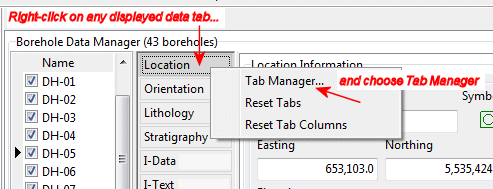
- Right-click on any of the displayed data tabs.
- Choose Tab Manager from the pop-up menu. (This tool is also available via the View | Tab Manager menu option.)
- Click on the name of the tab that you wish to customize.
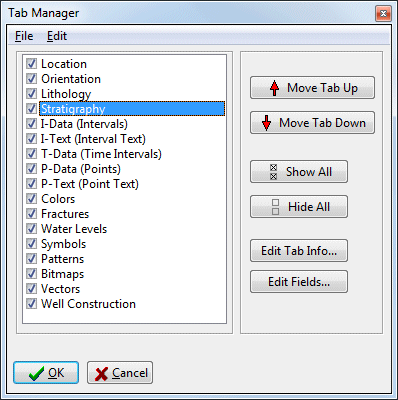
- Click the Edit Fields button (or select the Edit | Edit Fields menu option).
- To add a new field, click on the Add a New Field button
 .
.
- Define the new field for the data table:
- Field Name: Type in a name for the new field.
- Field Type: Choose what kind of data this field will contain. String fields can contain text and numbers. Boolean fields are yes/no fields. Floating Point fields contain real number values.
- Display Label: This will default to the field name, above, but you can change how the field is displayed using this setting.
- Description: For your information only, this describes what the field contains.
- Click OK when you are done. You will see the new field listed for the data table.
- Click OK to return to the Tab Manager window.
- Click OK to close the Tab Manager window and return to the Borehole Manager.
See also:
 Back to Database Overview

RockWare home page