
RockWorks | Borehole Manager | Aquifers | Google Earth Billboards
This program is used to read water levels for a specified aquifer from the borehole database for all enabled boreholes, and precipitation data from the RockWorks Utilities datasheet, and create mini-hydrograph diagrams as vertical "billboards" at each borehole location, for display in Google Earth. The individual diagrams use the same settings as those in the Utilities | Hydrology | Hydrograph program; the primary difference is that the Aquifers menu program reads the water level data from the Water Levels table within the Borehole Manager database.
See also: Single-Borehole Hydrographs, Hydrograph Maps
Feature Level: RockWorks Standard and higher
Menu Options
Step-by-Step Summary
Menu Options
- Input Columns: Since the borehole database does not contain precipitation information, it's necessary to list this data in the RockWorks Utilities datasheet. These prompts are used to specify which column in the datasheet contains the requested information.
-
- Date: Click here to select the column in the RockWorks Utilities data sheet that contains the listing of dates on which the precipitation measurements were made. The dates must be sorted in ascending order. The date format should be either mm/dd/yyyy or dd/mm/yyyy, to match your Windows date format. The years should be entered with 4 digits. Listing of time notations is optional and would only be applicable when more than one measurement was taken on a single date. During construction of the hydrograph diagram, you may request the axes be labeled at sampling time, or at minute, hour, day, or month intervals. Times may be entered using "am" or "PM" notations (not case-sensitive) or using a 24-hour format. If no "am" or "pm" are present, 24-hour format is assumed.
- Precipitation: Click here to select the column in the Utilities data sheet that contains the listing of precipitation measurements. These measurements need not be listed for each listed date. Precipitation amounts can be entered in any real number units. During creation of the diagram, you may enter unit labels for the axes.
- Aquifer: Click to the right to select which aquifer is to be represented in the hydrograph diagrams in the map.
- Main Title: Click on this item to enter the text, if any, that you want to appear at the top of each hydrograph diagram.
- Color: Click to the right to select a color for the title text.
- Include Borehole Name: Check this box if the name of the borehole should be included in front of the title text on each mini-hydrograph, such as "BH-01 Hydrograph."
- Axis Color: Click here to choose the color for the perimeter line around the diagram.
- Precipitation: Expand this heading to establish how the precipitation data will be plotted.
-
- Axis Title: Enter the text to be plotted along the left side of the diagram such as "Precipitation," in the same color as the precipitation data and noting the representative line or bar pattern, if any.
- Symbols: Insert a check here if the precipitation data is to be represented by symbols; expand this heading to select the symbol style and color. The symbols can be plotted alone or with a point-to-point line, below.
- Connect Points: Insert a check here if you are displaying symbols (above) and want them to be connected by lines. Expand this heading to select line color and thickness (1 = thin, 3 = thick).
- Bargraph: Insert a check here if the precipitation data is to be represented by a bar histogram. This is the default setting. Expand this heading to choose the fill pattern and color.
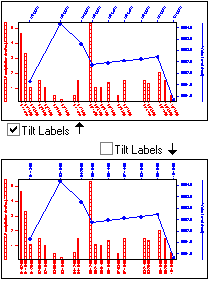
- Tilt Labels: Choose whether the precipitation date labels should be tilted (checked) or vertical (unchecked).
- Water Levels: Expand this heading to establish how the water level data will be plotted.
-
- Axis Title: Enter the text to be plotted along the right side of the diagram (such as "Water Level") in the same color as the water level data and noting the representative line or bar pattern
- Symbols: Insert a check here if the water level data is to be represented by symbols; expand this heading to select the symbol style and color. This is the default setting for water level data. The symbols can be plotted alone or with a point-to-point line, below.
- Connect Points: Insert a check here if you are displaying symbols (above) and want them to be connected by lines. Expand this heading to select line color and thickness (1 = thin, 3 = thick).
- Bargraph: Insert a check here if the water level data is to be represented by a bar histogram. Expand this heading to choose the fill pattern and color.
- Tilt Labels: Choose whether the water level date labels should be tilted (checked) or vertical (unchecked).
- Symbol + Label Dimensions: Expand this heading to choose from Small, Medium, or Large. This will affect the titles, label text, and point symbols.
- Bargraph Column Dimensions: Expand this heading to select a width.
- Labeling Intervals, Tick Mark Intervals: Expand these headings to establish these settings which affect the labeling of the top and bottom axes of the plot: the precipitation measurement dates and tick marks will be shown on the bottom axis, and the water level measurement dates and tick marks will be shown on the top axis. You may set the labels and the tick marks to different increments.
-
- The Samples option will plot the date and/or tick mark for each record in the datasheet. This can be nice if you have few entries, but cluttered if you have many. This is the only scheme with which labels are not necessarily set to an even spacing. The remaining options will plot regularly-spaced data/time labels and tick marks at the interval entered at the Interval prompt.
- Minutes: If the date column in your data sheet contains hour:minute:second notations, you might find it handy to include labels at minute intervals, with the increments entered in the displayed Interval prompt, below. For example, tick marks could be set to 10-minute increments and labels to 30-minute increments.
- Hours: If the date column in the main data sheet contains time notations, you can set the labels to hours, with increments entered in the displayed Interval prompt. For example, tick marks could be set to increments of 1 hour and labels to 6 hours.
- Days: With this setting, the axes will show a label for each day (if Interval is set to "1") or other day interval as specified.
- Months: With this setting the axis will display one label per month (if Interval = "1") or other month interval as specified.
- Interval: Click on the Interval item to type in the labeling increments. For example, if you have chosen the Days and set
the Interval to "5", then the labels will appear every 5 days.
- Diagram Dimensions: This will determine the relative horizontal and vertical dimensions of the mini-hydrographs, excluding axis labels, titles, and diagram title. You can make the diagrams virtually any size you choose, as you may scale them up or down during printing from RockPlot.
- Billboards: Click the Options button to view/adjust the Billboard settings.
- Units: Choose Feet or Meters by clicking in the appropriate radio button.
- Width: Type in the width, in the above units, for the billboards. For example, if you set the width to 50 meters, the billboards will plot that wide in relation to the ground in Google Earth.
- Elevation: Enter the offset above ground in the above units.
- Direction: Enter the left-to-right reading direction of the billboards, in a 0 to 360 azimuth format.
- Group clustered wells: Check this box if the billboards for proximal wells are to be combined into a single, stacked diagram.
Step-by-Step Summary
- If necessary, create a data listing in the RockWorks Utilities in which precipitation measurements and dates are listed. See Hydrograph Data for information about how you can lay out this file.
- Access the Borehole Manager program tab.
- Enter/import your data into the Borehole Manager. This tool reads Location and Water Level data.
- Enable/disable the boreholes to be included in the billboards by inserting/removing the checks from their check-boxes.
- Select the Aquifers | Google Earth Billboards menu option.
- Enter the requested program settings, described above.
- Click the Process button to proceed with diagram generation.
The program will generate the requested graph(s) for the enabled boreholes, storing them in a KML file inside a KMZ (zip) file. The Google Earth KML and KMZ file names will be assigned automatically.
- If RockWorks displays the KMZ name in a popup window for your reference, you can confirm:
- Automatically load file into Google Earth: Be sure this is checked if you want to display the output at this time.
- Show this message every time a KMZ File is Created: If checked, this window will be displayed each time a Google Earth output is created. Uncheck this if you prefer not to see this window in the future.
(Both of these settings are also available via the Preferences menu.)
- Click OK to continue or Cancel to cancel the operation.
The billboards will be displayed in Google Earth, if requested.
 Back to Aquifers Menu Summary

RockWare home page