In the Borehole Manager T-Data table you can define an unlimited number of record types for the different time-sampled components you've recorded, which will be displayed as columns in the Borehole Manager window. Before you start entering the depth intervals, dates, and measured values, you need to define the column headings or data "types."
Use one of these methods to access the T-Data Column definition window:
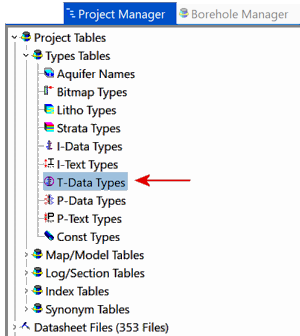
- Double-click on the T-Data Types entry in the Project Manager tab, under Project Tables | Types Tables.
- Select the View | Tab Manager menu option, click on the Configure Data Pages button.
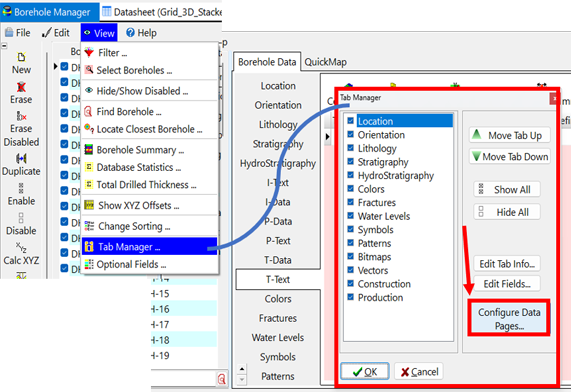
Use the Data Page Configuration Settings dialog box to set up the Pages and Types order and captions. Click to view the Configuration help document to learn more.
Then, click the Edit T-Data button on the right side to open the T-Data columns dialog box.
The program will disply the T-Data Columns dialog box
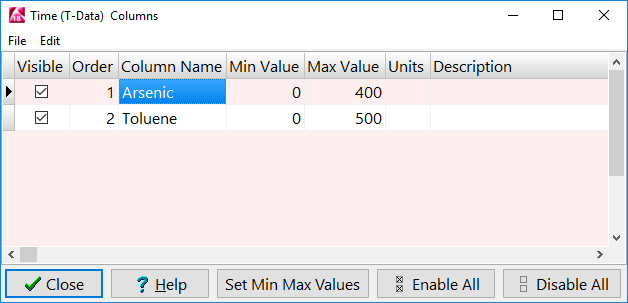
Define the T-Data record types:
- Visible: Use these check-boxes to define whether the column will be visible in the Borehole Manager interface. Removing the check-box here will not delete the column from the database, instead it will simply remove the column from display within the program interface. See the Tips, below, for deleting a type from the database.
- Order: The order of the T-Data components is assigned automatically (using integer values) as you add rows to this listing. The Order value simply defines the order in which the components are listed in the Types table, though initially it will also define the left-to-right order in which the columns are displayed in the T-Data table in the Borehole Manager. However the Types Table order and the column order operate independently - the Types Table order is stored in the project database, and the column order is stored in the project's data dictionaries.
- You can change the Order numbers, and hence the order of the items in the Types table, by editing the Order values. This will not automatically affect the left-to-right column order in the T-Data table.
- You can click and drag the columns in the T-Data table to rearrange them within the Borehole Manger view, and that column order will be remembered. That rearrangement will NOT affect the Order number in the Types table.
- However, if you want the T-Data column order to match the Order number in this Types table you can force that to happen: right-click on the "T-Data (Time Intervals)" button in the Borehole Manager, choose Reset Tab Columns, and the columns will be sequenced based on the Order value here.
- Column Name: Enter the name of the measured value you'll be recording, such as Arsenic or Toluene, shown above. The name will become the column heading. This field is limited to 31 characters, though we recommend keeping the names as short as possible for readability.
- Min Value, Max Value: The program will use these columns to list the minimum and maximum values for the component in the current project database. You can use the Set Min Max Values button to refresh this listing.
- Units: Type in the units you are measuring, such as PPM or Percent. This is for your reference only.
- Description: Here you can list descriptive information about the measurements, for your reference.
Repeat this for as many columns as you want in your T-Data table.
Click the Close button to accept your entries.
- To add a new row to the end of the listing, click in the lowest current row and press the down-arrow key.
- To delete a row in the T-Data Types table, and remove the column from the database, click in the row and type Ctrl+Del.
! If there is data stored under this record type in the database, you'll be warned as such. Click OK to continue with the deletion and all data will be lost or click Cancel to cancel the deletion.
 Back to Entering T-Data

RockWare home page
 Define the T-Data Columns