 Time: 1.5 minutes
- With the LogPlot program running, click on the Log Design tab to bring it to the front.

The program will display the Log Design window. This window always displays the last design you were working with, or (if new) the first sample log in the library.
- If the current project folder displayed at the top of the Project Manager reads "..\Samples" (representing the My Documents\LogPlot8 Data\Samples" folder), you can skip down to #4. If not, continue with 3.
- If necessary, open the "Samples" Directory that was installed by LogPlot (the default location is "..\Documents\LogPlot8 Data\Samples"). Click on the Project button at the top left of the LogPlot 8 window.
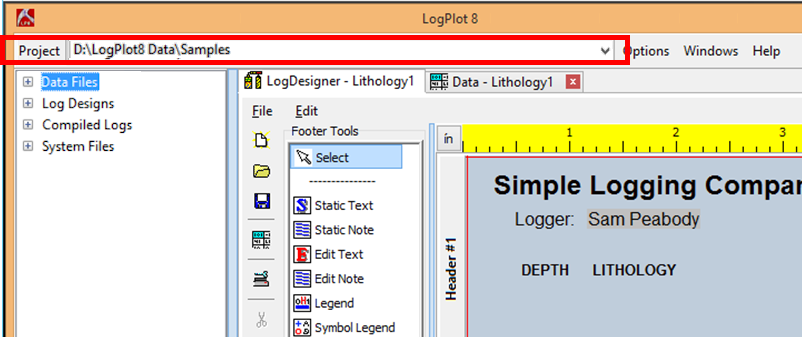
and browse to the LogPlot8 Data\Samples folder. Click Open to open that folder into the Project Manager.
You should see a listing of a number of data, design, and plot files.
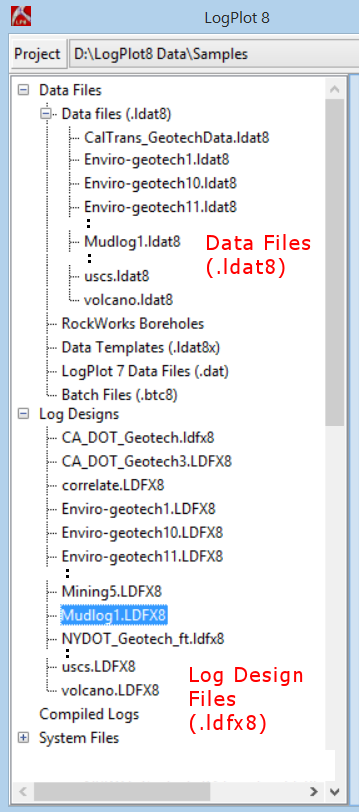
- Locate the LogDesign file named "Mudlog1.ldfx8" and double-click on it. It is listed under the "Log Designs" heading. The log will be displayed in the Design tab.
- You can use the Visible Sections checkboxes to define which header/footer/body panes are visible within the Design window. You can change the viewing size of the visible panes by clicking on the pane divider, holding the mouse button down, and dragging it up or down.
- You'll note that there's a red line along the right edge of the design window that shows the right edge of the current printer page. It's designed to serve as a reference of how much space you have when designing your logs.
- Take a moment to look at the different items in the header, body, and footer portion of the log design. You can double-click on any item to view its options.
- Use your mouse to click and drag any item in the design, to reposition it. Use the Edit | Undo option to undo recent editing change(s).
Here's a summary of the design tools you reviewed:
- Access the Log Design window.
- Use the Project Manager to open a log design file.
- Double-click on a design item to access its settings.
- Click and drag to move design items.
- Edit | Undo to undo recent editing change(s).
 Back to menu | Next (Open a Sample Mud/Gas Data File)

RockWare home page