Step-by-Step Summary
Follow these steps to filter specific colors from display in the 3D color model.
- In the Data pane of the RockPlot3D window, right-click on the name of the solid color model to be modified, and choose Options.
- Filter: Locate this section of the Color Options window.
- Enabled: Insert a check here to activate the color filter.
- Inclusive / Exclusive: Use these options to define whether the color you select is to be displayed ("Inclusive") or hidden ("Exclusive").
- Color: Use this box to define the specific color to be displayed or hidden.
- Select: You can use this button to display a window with the current color model, where you can click on a specific color.
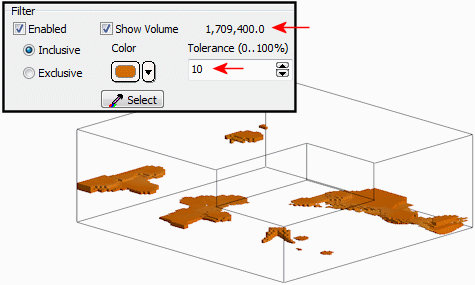
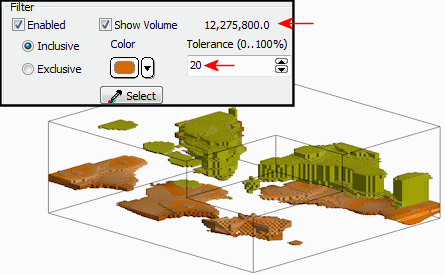
- Tolerance: Here, type in the range of colors to either side of the selected Color, as a percent, which are to be displayed or hidden. Tolerance is expressed as a percentage whereby 100 corresponds to all possible colors while zero would limit the filter to only those that have exactly the same color value.
- Show Volume: Use this checkbox to display the volume of the visible voxels.
- Apply: Click the Apply button to see the filter changes in the model.
Here's an example of a color model filtered for a select color with 10% tolerance and with 20% tolerance. Note how the Show Volume display is updated.
 Back to RockPlot3D Color Model Settings

RockWare home page